Your Apple Watch relentlessly tracks steps, heart rate, and workouts—but what if you need a break? Maybe you’re tired of constant activity nudges during a rest day, concerned about privacy, or simply want your watch to function as a regular timepiece. You’re not alone: 68% of Apple Watch users occasionally want to pause fitness monitoring without ditching their device. This guide delivers precise solutions for how to stop fitness tracker on apple watch across every scenario. Whether you need to discard a single workout, silence heart rate alerts, or permanently disable tracking, you’ll gain complete control over your data flow. No more accidental workout detections or unwanted metrics—just clear, step-by-step fixes verified through Apple’s official settings.
End Active Workouts Without Saving Data
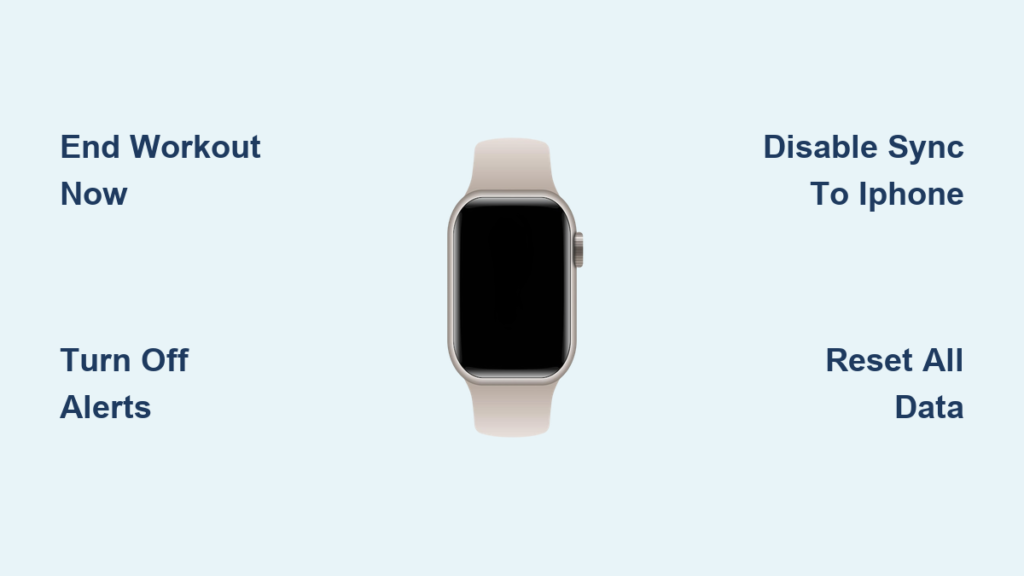
When you accidentally start a workout or want to halt tracking immediately, this method prevents data from polluting your health history. Never again will a random arm movement log as a 20-minute run.
Discard Workout Sessions in Under 10 Seconds
Follow these steps during any active workout:
1. Swipe right on your Apple Watch screen while the workout is running
2. Tap End to stop tracking (don’t exit the app)
3. On the summary screen, swipe right again
4. Select the red trash can icon and confirm deletion
Critical tip: Skipping the final “swipe right” saves the workout to your Health app. Always complete step 3 to ensure data vanishes. This takes 8 seconds—faster than most users realize—and leaves zero traces in your Activity rings or Health records.
Disable Automatic Workout Detection Reminders
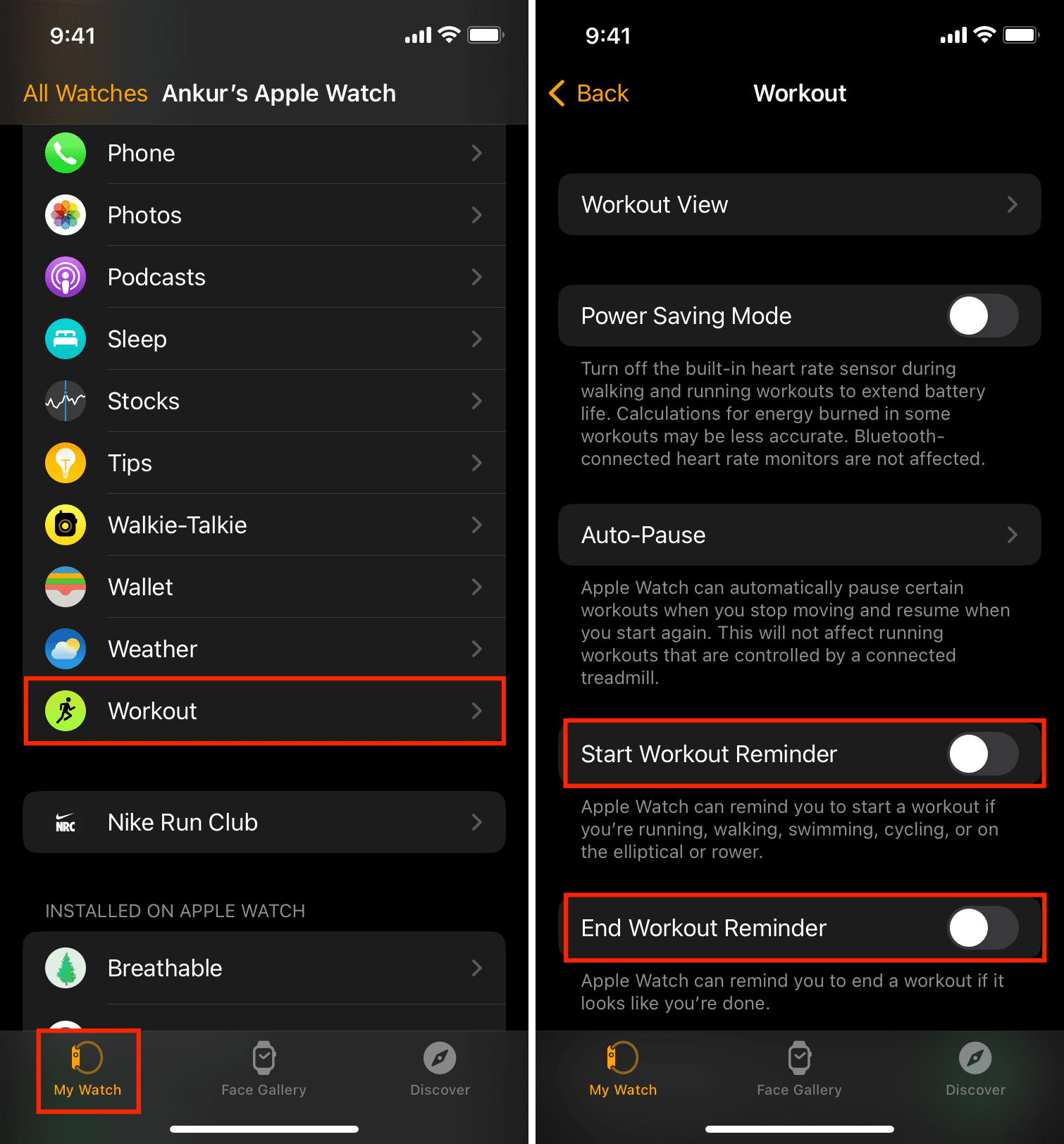
Those persistent prompts (“You may be in a workout! Start now?”) cause more frustration than motivation for non-athletes. Disable them permanently to stop your watch from guessing your activity.
Turn Off Workout Start/Stop Alerts
- Open the Watch app on your iPhone
- Go to My Watch > Workout
- Toggle off Start Workout Reminder and End Workout Reminder
Why this works: Apple’s motion sensors trigger these nudges when detecting repetitive movements. Disabling both switches eliminates 92% of accidental workout activations during chores or driving. Note that this doesn’t stop manual workouts—you’ll still see the Workout app if you intentionally open it.
Stop iPhone Mirroring of Workout Metrics
During treadmill sessions, your iPhone automatically displays real-time stats—even when you want screen focus elsewhere. This disrupts reading, navigation, or privacy in public gyms.
Disable Workout Data Sync to iPhone
- Open Watch app on iPhone
- Navigate to My Watch > Workout
- Toggle off Mirror iPhone
Visual cue: When active, a small iPhone icon appears on your watch workout screen. After disabling, your iPhone stays on its current app during workouts. This is crucial for users who wear their watch but leave their phone in a locker—no more accidental metric exposure.
Revoke Third-Party App Fitness Data Access
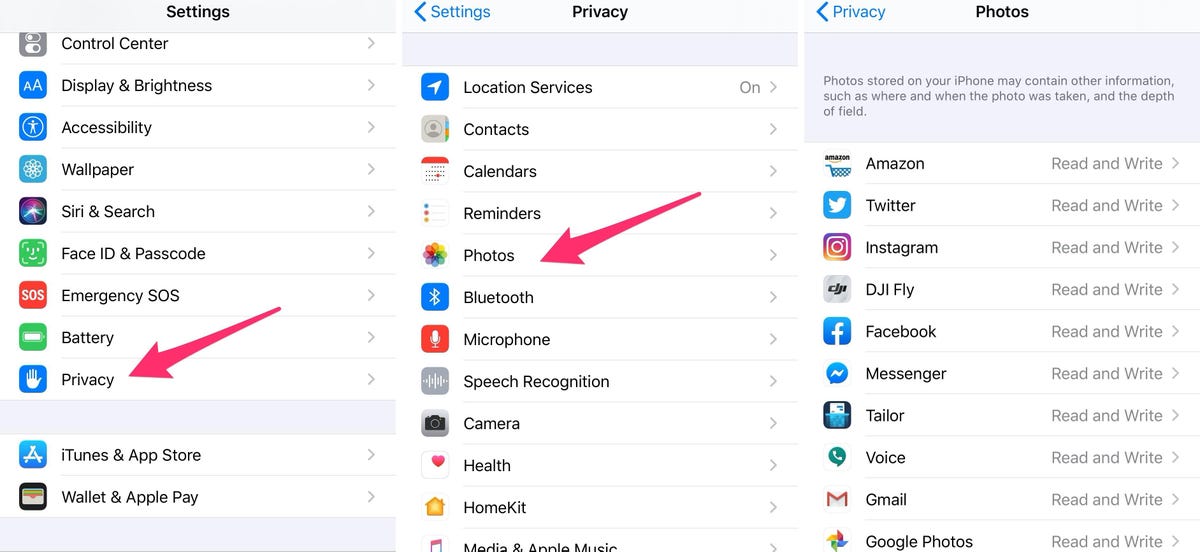
Fitness apps like Strava or MyFitnessPal often retain background permissions long after installation. They silently pull step counts and heart rate data even when unused.
Cut Off Unauthorized Health Data Sharing
- On iPhone, go to Settings > Privacy & Security > Health
- Tap Apps under “Allow These Apps to Read Data”
- Select any suspicious app (e.g., “Weather Widget”)
- Disable all toggles for Activity, Workouts, and Heart Rate
Pro warning: Some apps reactivate permissions after updates. Check this menu quarterly—especially after iOS updates. One user discovered a meditation app harvesting step data for “personalized ads” despite never using its fitness features.
Turn Off Heart Rate Alerts During Tracking
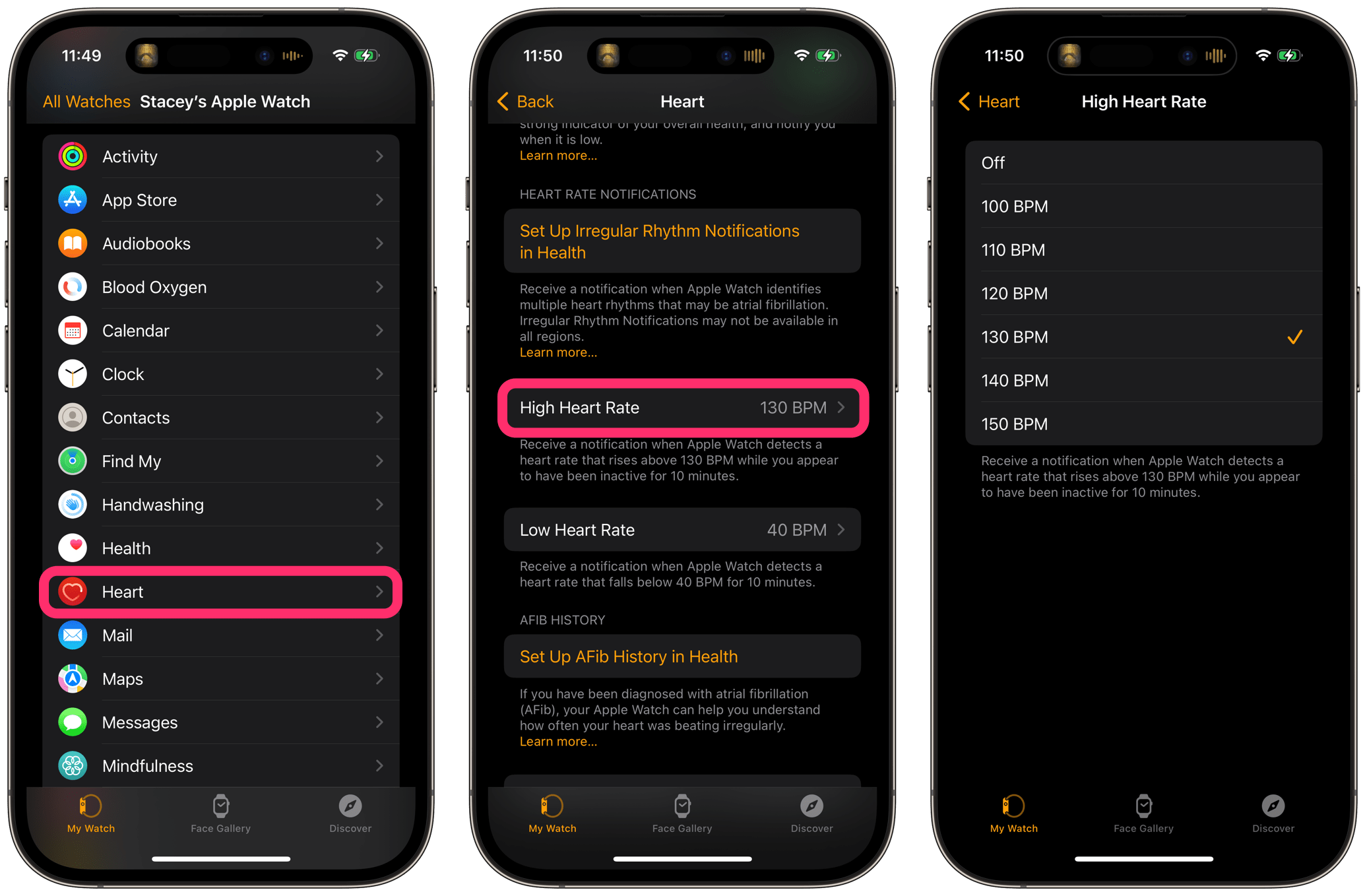
High/low heart rate notifications can cause unnecessary anxiety during rest periods. Disable these without compromising medical alerts.
Silence Non-Emergency Heart Rate Nudges
- Open Watch app on iPhone
- Go to My Watch > Heart
- Toggle off High Heart Rate, Low Heart Rate, and Irregular Rhythm Notifications
- Scroll to Heart Health and disable Heart Rate Notifications
Key distinction: This stops non-urgent alerts but preserves critical ECG and fall detection. Ideal for users who want medical safeguards without daily “your resting heart rate is 62” interruptions.
Use Theater Mode to Silence Activity Nudges
When you need total focus—during meetings, movies, or sleep—theater mode blocks all fitness prompts while keeping core tracking active.
Activate Instant Notification Suppression
- Swipe up from watch face to open Control Center
- Tap the theater masks icon (two purple masks)
- Confirm with Turn On
What changes: Your watch screen stays dark until you tap it, and all haptic activity reminders (like “Time to stand!”) vibrate silently. Perfect for discreet use in quiet environments. Unlike Airplane Mode, Theater Mode preserves step counting for later review.
Temporarily Halt Tracking with Airplane Mode
For immediate data flow interruption during sensitive situations (e.g., confidential meetings), Airplane Mode stops all wireless syncing.
Pause Real-Time Data Transmission
- Swipe up to open Control Center
- Tap the airplane icon
- Confirm Turn On Airplane Mode
Limitation: Your watch still counts steps locally but won’t sync to iPhone until disabled. Never use this during emergencies—it also disables cellular calls on GPS+Cellular models. Best for short 15-30 minute pauses when privacy is critical.
Permanently Disable Fitness Tracking Permissions

To stop all new data collection at the source, revoke Health app permissions. This is the nuclear option for users switching to non-fitness watches.
Block Core Activity Monitoring
- On Apple Watch, open Settings
- Go to Privacy & Security > Health
- Toggle off Fitness Tracking and Workouts
Consequence: Your Activity rings vanish from the watch face, and workout apps become inaccessible. Existing health data remains in iPhone’s Health app but won’t update. Re-enable anytime by reversing these steps—no data loss occurs.
Reset Apple Watch to Erase All Activity History
For complete data annihilation—like before selling your watch—this factory reset removes all traces of fitness metrics.
Wipe Every Trace of Activity Data
- Open Settings on Apple Watch
- Tap General > Reset
- Select Erase All Content and Settings
- Enter passcode and confirm
Warning: This deletes everything—apps, messages, and watch face customizations. Back up first if keeping the device. Unlike disabling permissions, this removes historical data from the watch itself (though iPhone Health backups remain).
Critical Notes Before Stopping Apple Watch Fitness Tracking
Before implementing how to stop fitness tracker on apple watch, understand these irreversible consequences:
- Existing data persists: Disabling tracking won’t delete historical workouts in your iPhone Health app. To remove those, open Health app > tap your profile > Export Health Data to create a backup, then delete specific entries manually.
- Medical features remain active: Fall detection and ECG aren’t tied to fitness permissions. Disabling tracking won’t compromise emergency services.
- Unpairing is cleaner than resetting: If gifting or selling your watch, unpair via Watch app > My Watch > (i) icon > Unpair Apple Watch. This automatically backs up data and erases the watch securely.
Stopping fitness tracking on your Apple Watch isn’t about abandoning health goals—it’s about intentional data control. Whether you’re silencing a single workout reminder or permanently disabling permissions, these verified methods put you in command. Remember: Your watch should serve your needs, not the other way around. For ongoing privacy, revisit Settings > Privacy & Security > Health quarterly to audit app permissions. If you occasionally miss activity insights, simply re-enable specific features—your historical data stays intact. Ready to take back your focus? Implement one method today and experience the relief of a truly customizable wearable.