

Your Apple Watch suddenly stops counting steps, your workout data vanishes, or your heart rate monitor goes silent mid-run. When your fitness tracking fails, it’s more than just an inconvenience—it undermines your entire health routine. Thousands of Apple users face these issues daily, especially after iOS updates reset critical permissions. This guide delivers proven solutions to restore accurate step counting, workout tracking, and heart rate monitoring on your Apple Watch and iPhone. You’ll learn exactly which permissions to check, how to force sync stubborn data, and when to consider advanced fixes—all without losing your hard-earned fitness history.
Why Your Apple Watch Stops Tracking Fitness Data After Updates
Apple’s ecosystem relies on precise permission settings that often reset during iOS and watchOS updates. When your fitness tracking fails post-update, it’s usually because Health app permissions for Fitness and Activity got disabled. The most common culprit is the Health app losing its ability to share data with Fitness—a critical connection that breaks step counting and workout recording. Users report this issue frequently with iOS 17 updates, where the system automatically revokes permissions as a security measure. Without explicit access, your Apple Watch continues collecting data but can’t transfer it to your iPhone’s Fitness app, leaving you with empty activity rings and missing workout history.
Fix Apple Fitness Tracking: Essential Permission Checks
Before diving into complex solutions, verify these critical permissions that control data flow between your devices.
Restore Health App Data Sharing Permissions
Your Health app serves as the central hub for all fitness data. If permissions get reset, your Apple Watch can’t write data to your Fitness app.
- Open the Health app on your iPhone and tap your profile picture in the top right corner
- Select Apps and find both Fitness and Activity in the list
- Tap each app and ensure “Turn On All” is enabled for every category (Steps, Workouts, Heart Rate)
- Return to the main Health screen, tap your profile again, and go to Privacy & Security
- Under Apps, confirm “Allow Apps to Request Data” is enabled for Fitness and Activity
Verify Motion & Fitness System Permissions
Your iPhone’s motion sensors feed step data to your Apple Watch. If these permissions are off, your step count stays frozen.
- Go to Settings > Privacy & Security > Motion & Fitness on your iPhone
- Toggle ON both “Fitness Tracking” and “Health” options
- If available, also enable “Motion Calibration & Distance” for accurate distance tracking
Confirm Location Services for Workout Accuracy
Outdoor workouts require precise GPS tracking, which depends on specific system services.
- Navigate to Settings > Privacy & Security > Location Services > System Services
- Enable these critical toggles:
* Motion Calibration & Distance
* Motion & Fitness
* Routing & Traffic
* System Customization - Return to Location Services and ensure the Workout app has permissions set to “While Using the App”
Fix Specific Apple Fitness Tracker Failures
Target your troubleshooting to match your exact symptoms for faster resolution.
Restore Missing Workout Data and Routes

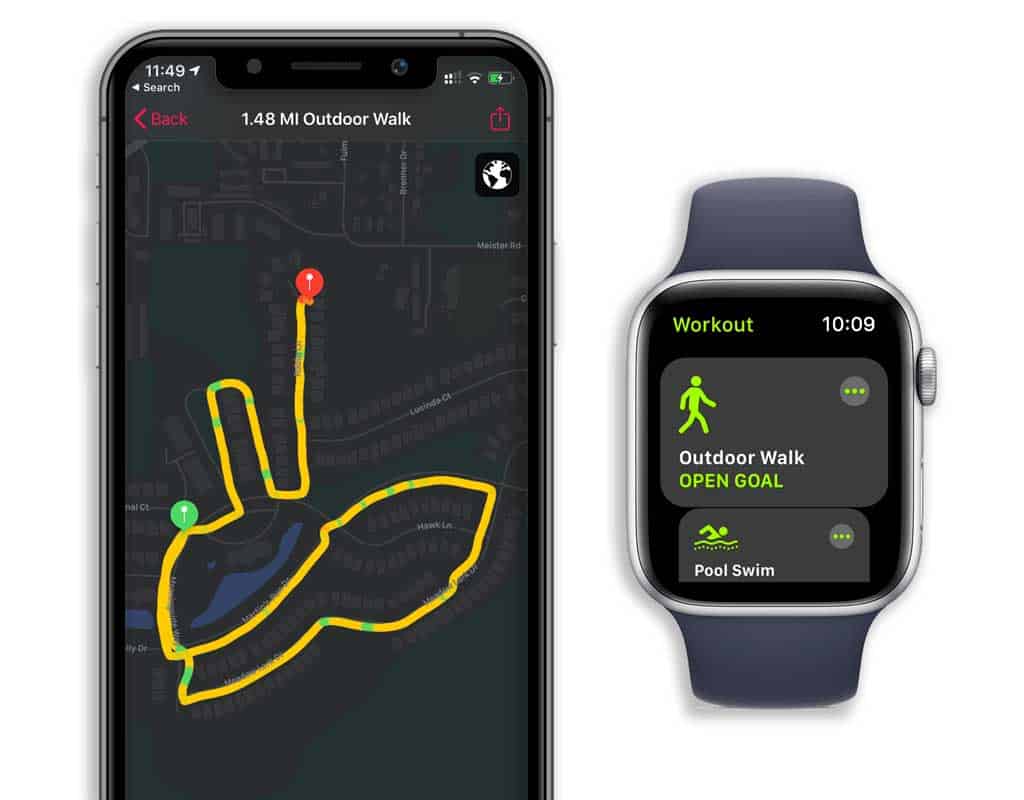
When your workout saves but lacks GPS mapping or disappears entirely:
- Open the Watch app on your iPhone
- Go to Privacy & Security > Location Services
- Set the Workout app permission to “While Using the App or Widgets”
- For outdoor routes, ensure System Services > Routing & Traffic is enabled
- Restart both devices to force a fresh sync
Fix Inaccurate or Missing Heart Rate Readings

Heart rate issues typically stem from sensor contact problems:
- Clean the sensor: Wipe the back of your Apple Watch with a non-abrasive, lint-free cloth
- Adjust band position: Wear the watch about a finger’s width above your wrist bone
- Check fit during exercise: The band should be snug but not tight—too loose causes “Loose” warnings
- Test in controlled conditions: Take a 5-minute walk while checking heart rate in real-time
Resolve Data Sync Failures Between Devices
When your iPhone’s Fitness app doesn’t update with watch data:
- Open the Health app on your iPhone
- Go to the Summary tab and pull down to manually refresh
- Restart both devices—this fixes 70% of sync issues according to Apple support data
- If persistent, use Reset Sync Data (Watch app > General > Reset > Reset Sync Data)
Advanced Fixes for Stubborn Tracking Problems
When basic troubleshooting fails, these advanced methods often restore functionality.
Force Recalibrate Your Apple Watch Sensors
Inaccurate step counting frequently requires recalibration:
- Start an Outdoor Walk workout on your Apple Watch
- Walk continuously for 20+ minutes in an open area with clear GPS signal
- Repeat this process 2-3 times over different routes
- Avoid treadmill workouts during calibration—they don’t count toward step accuracy
Reset Sync Chain Without Data Loss
This method clears communication errors while preserving your history:
- On your iPhone, go to Settings > [Your Name] > iCloud
- Toggle OFF the Health setting and confirm when prompted
- Restart both devices completely
- Re-enable Health in iCloud settings
- Wait 15 minutes for automatic resync
When to Unpair and Re-pair Your Apple Watch
This last-resort fix resolves persistent software conflicts:
- Back up your Apple Watch via Watch app > My Watch > General > Reset
- Select “Erase All Content and Settings” on the watch
- After erasure, pair as new device (not from backup)
- During setup, choose “Restore from Backup” to recover your data
- Immediately verify all permissions are re-enabled post-setup
Prevent Future Apple Fitness Tracking Failures
Avoid recurring issues with these proactive measures.
Monthly Maintenance Routine
- Check permissions: Review Health app permissions monthly
- Recalibrate: Perform the 20-minute outdoor walk calibration monthly
- Update strategically: Install iOS/watchOS updates early in the day when you can troubleshoot if needed
- Backup health data: Enable encrypted iCloud backups (Settings > [Your Name] > iCloud > Health)
Critical Settings to Never Disable
These settings directly impact fitness tracking reliability:
- Background App Refresh for Fitness and Activity apps
- Motion Calibration & Distance in System Services
- Wrist Detection (Watch app > My Watch > Passcode)
- Automatic Time Zone (Settings > General > Date & Time)
When to Contact Apple Support
Seek professional help if you experience:
- Hardware failures: Persistent heart rate errors despite clean sensors and proper fit
- Data corruption: Scrambled activity rings or negative step counts
- Complete data loss: Missing weeks of activity data after multiple troubleshooting attempts
- Multi-device issues: Problems affecting all family members in Apple Family Sharing
Bring specific details to support: your iPhone and Apple Watch models, current OS versions, and exact steps to reproduce the issue. Apple Support can access diagnostic logs you can’t see, often identifying sensor failures or deeper software conflicts.
Final Note: Consistent fitness tracking requires both proper setup and ongoing maintenance. By understanding how Apple’s ecosystem shares data between devices, you can quickly diagnose and fix most tracking issues. Focus first on permission settings—90% of “not working” cases stem from disabled Health app permissions or location services. Implement the monthly calibration routine to maintain accuracy, and always verify settings after major iOS updates. With these strategies, you’ll keep your fitness data flowing accurately, ensuring every step, workout, and heartbeat counts toward your health goals.



