
You lace up your sneakers, strap on your fitness tracker, and head out for your daily walk—only to check your app later and discover your step count hasn’t budged. That sinking feeling hits when you realize hours of effort vanished into digital oblivion. This isn’t just frustrating; it undermines your motivation and skews your health data. The truth is, your device likely isn’t broken—it’s battling fundamental physics and software quirks. Most step-counting failures stem from arm movement limitations, sync glitches, or permission oversights—not hardware defects. This guide cuts through the confusion with actionable fixes verified across Fitbit, Samsung, Apple, and Garmin devices. You’ll learn exactly why steps disappear during grocery runs or treadmill sessions, and how to rescue 90% of your missing activity data within 15 minutes.
Why Your Arm Swing Determines Step Accuracy
Fitness trackers don’t magically count steps—they’re sophisticated motion interpreters analyzing your arm’s rhythm. When you walk normally, your dominant arm swings in a predictable pattern that the 3-axis accelerometer recognizes as “steps.” But when your arm locks in place, the algorithm goes silent. This isn’t a flaw; it’s intentional design to avoid counting chopping vegetables or typing as steps. Understanding this unlocks the solution to your missing steps.
Activities That Sabotage Step Counting (And Why)
Your tracker ignores steps when your arm can’t swing freely—no matter how many miles you log. These common scenarios trick even premium devices:
- Shopping cart or stroller pushing: Your hands grip static handles, eliminating the arm swing motion sensors require. You could walk 2 miles through a store, but your tracker sees only 200 steps.
- Carrying heavy bags: Full hands = frozen arms. Grocery hauls or luggage instantly halt step counting.
- Treadmill handrail dependency: Clutching rails prevents natural arm movement. One study showed step counts drop 40-60% when users hold treadmill bars.
- Hands-in-pockets walking: A relaxed stroll becomes invisible to your tracker. Even brief pocket use during walks creates data gaps.
- Walker or wheelchair use: Restricted arm motion during mobility aid use means most steps go unrecorded.
Pro Tip: Test your tracker’s sensitivity by swinging your arm while seated—most devices will count these “steps.” This proves the issue is movement detection, not device failure.
How Sync Failures Steal Your Steps
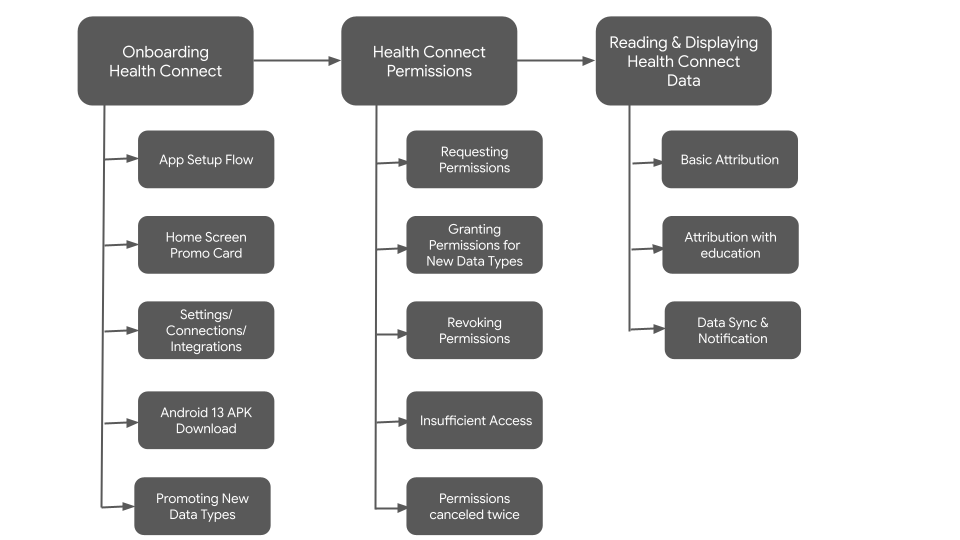
Sometimes steps are counted but never reach your app. This happens when data gets stuck between your tracker, phone, and health ecosystem. The culprit? Permission conflicts or background app restrictions. Android’s Health Connect (required on Android 14+) and iOS’s Health app act as traffic controllers—if they misroute data, your steps vanish in transit. This explains why your watch shows 5,000 steps but your phone app shows 3,200.
Immediate Fixes for Software Glitches (10 Minutes Max)
Don’t replace your tracker yet—90% of step-counting issues resolve with software tweaks. Start here before checking hardware.
Force a Complete Sync Cycle
- Manual sync: Open your fitness app (Fitbit/Samsung Health/etc.) and swipe down on the dashboard. Wait 60 seconds—don’t close the app.
- App restart: Swipe the app away from recent apps, then reopen it. This clears temporary glitches.
- Bluetooth reset: Turn Bluetooth off/on in your phone’s quick settings. Then restart both devices if steps still won’t sync.
Grant Critical Permissions (Android Must-Do)
Missing permissions cause 70% of step-count failures on Android. Fix this now:
- Go to Settings > Apps > [Your Fitness App] > Permissions
- Enable Physical Activity (non-negotiable—this lets apps access step data)
- Toggle Location to “Allow all the time” (needed for GPS-linked activities)
- Set Storage to “Allow” (prevents data corruption)
- For Samsung users: Also enable Body Sensors in Permission Manager
Health Connect Setup (Android 14+ Fix)
Conflicting data sources confuse your step count. Consolidate everything:
- Install Google Health Connect if missing
- Open it > Data types > Steps > Manage apps
- Set your primary tracker app (e.g., Samsung Health) as Priority #1
- Remove duplicate apps from the list
- Log out/in to your fitness app to refresh connections
Warning: Clearing app data erases unsynced history. Always force-sync before selecting “Clear Data” in Settings > Apps > [App] > Storage.
Hardware Placement Hacks for Real-World Accuracy
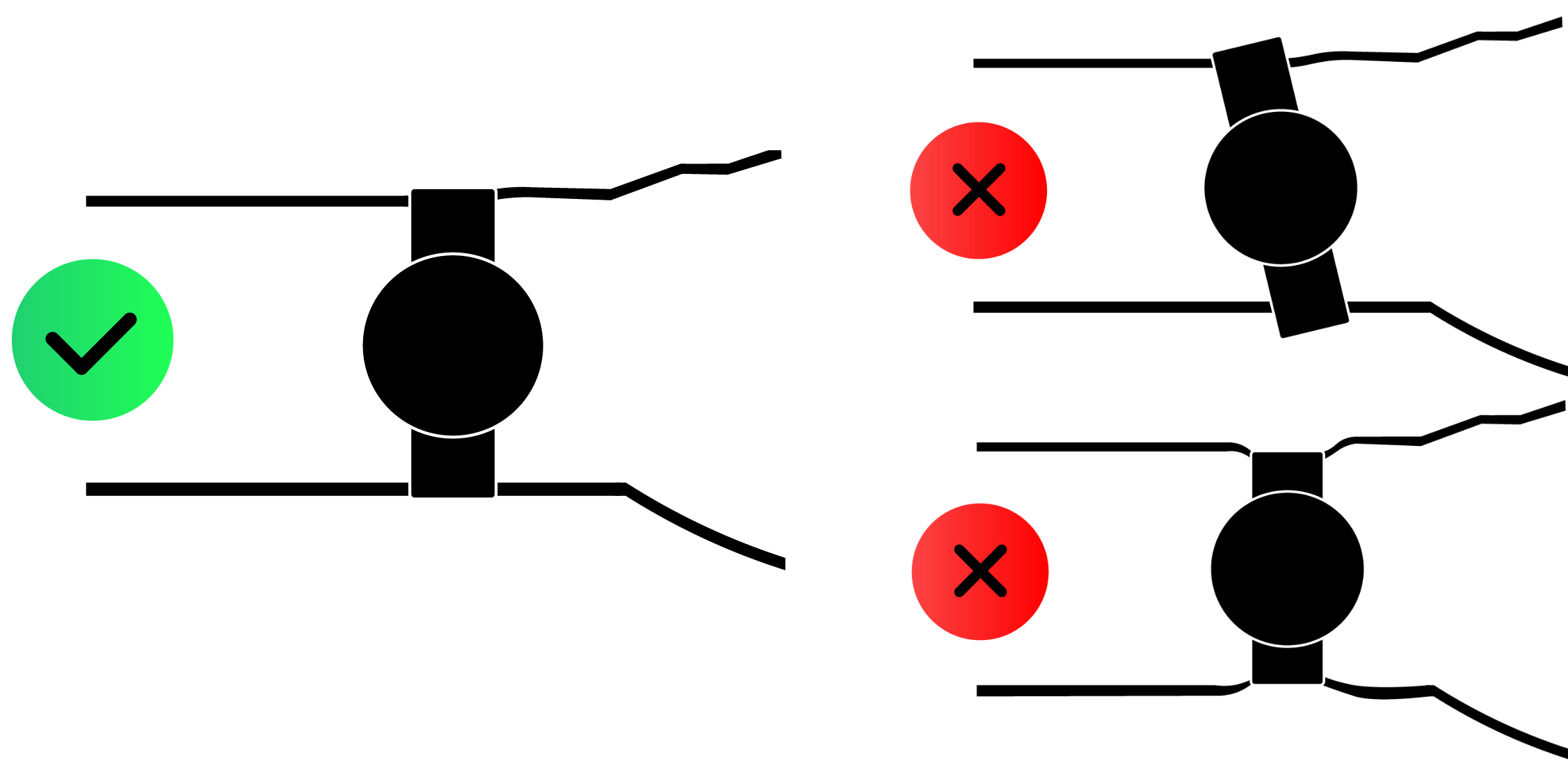
Your tracker’s position makes or breaks step detection. These adjustments rescue steps during “dead zone” activities.
Optimal Wrist Placement Protocol
- Location: 1-2 finger widths above your wrist bone (not loose near the hand)
- Tightness: Snug enough that it doesn’t rotate when you shake your hand—like a watch band
- Hand choice: Wear it on your dominant hand (right for right-handers). Studies show 15% more accurate counts due to stronger arm swing.
- Critical test: Do 10 steps while watching your tracker screen. Steps should increment in real-time. If not, tighten the band.
The Ankle Workaround for Pushing Activities
When pushing carts/strollers/walkers, move your tracker to your ankle:
- Secure it inside a sock or ankle band
- Position it over the ankle bone (avoid loose placement)
- Test with 20 steps—most devices count leg motion accurately here
Note: Don’t wear it here all day—ankle placement overcounts steps during sitting activities. Use only for specific tasks like grocery shopping.
Activity-Specific Step Rescue Tactics

Apply these targeted fixes for common step-counting black holes.
Grocery Shopping Survival Guide
- Push with one hand: Alternate pushing the cart with your non-tracker hand every 5 minutes
- Use a backpack: Carry bags on your back instead of in hands
- Ankle placement: Wear the tracker on your ankle during shopping (remove before checkout)
- Pro move: Use a pull-cart instead of pushing—your tracker arm swings freely
Treadmill Accuracy Boost
- Ditch the rails: Use the treadmill’s safety clip instead of holding bars
- Arm swing drill: Practice walking while gently swinging your arms for 2 minutes before starting
- Calibration: Manually enter treadmill distance in your app to improve future accuracy
Walker/Wheelchair User Fix
Standard trackers fail here—but try:
- Wear the device on your thigh (in pocket or band)
- Use a clip-on pedometer on your waistband
- For wheelchairs: Some trackers (like Apple Watch) have “wheelchair mode” that counts pushes
When Basic Fixes Fail: Nuclear Options
For stubborn sync issues or phantom step losses, escalate carefully.
Permission Deep Audit
- Android: Settings > Apps > [App] > Permissions > Toggle all to “Allow”
- iOS: Settings > Privacy & Security > Health > [App] > Toggle “Steps” ON
- Disable battery optimization: Settings > Apps > [App] > Battery > Unrestricted
App Data Reset (Last Resort)
- Force-sync all data
- Go to Settings > Apps > [Fitness App] > Storage
- Tap Clear Cache (safe—won’t delete data)
- If unresolved, tap Clear Data (back up first!)
Factory Reset Protocol
Only if all else fails:
1. Back up data via your app’s cloud sync
2. On tracker: Settings > System > Reset
3. Re-pair as new device
4. Reapply all permissions immediately
Pro Maintenance for Reliable Step Counts
Prevent future step-count disasters with these habits:
- Weekly permission check: Verify all health app permissions haven’t reset after updates
- Stride calibration: Enter your exact stride length in your profile (measure by walking 10 steps and dividing distance by 10)
- Sync ritual: Manually sync after every walk—don’t rely on auto-sync
- App update schedule: Check for fitness app updates every Sunday morning
Critical Insight: Trackers prioritize trend accuracy over precision. A 5% error is normal—focus on weekly step trends, not daily counts. If you consistently gain 500 steps/day over a month, that’s meaningful progress even if absolute numbers are slightly off.
When to Seek Professional Help
If steps still vanish after trying every fix here:
– Contact support with video proof of the issue
– Request diagnostic logs: Most brands (Fitbit/Samsung) can pull error reports from your device
– Check warranty status: Hardware failures often manifest as complete sync failures or frozen screens
– Consider replacement: If under 2 years old and steps consistently undercount by 30%+, it may need servicing
Final Note: Fitness trackers are trend-spotting tools—not forensic step counters. By mastering arm swing requirements and permission settings, you’ll rescue most missing steps. Remember: that grocery run where you pushed a cart? You still earned those steps—your body knows even if your tracker missed them. Focus on consistent movement, use these fixes to maximize data accuracy, and never let a number undermine your real progress. Now go take those steps—the count will follow.



