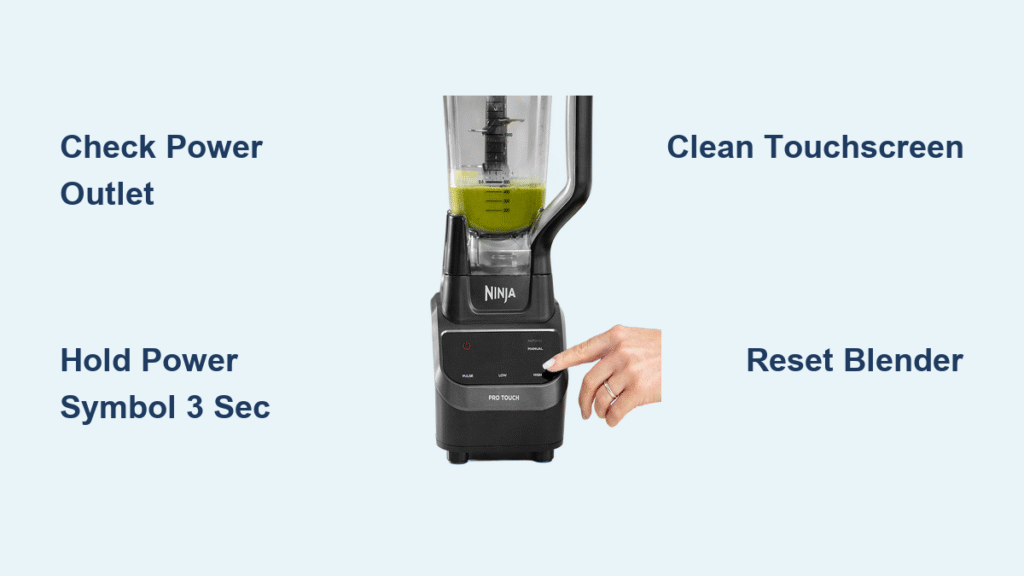
Your Ninja blender sits on the counter, sleek and modern, but the touch screen remains stubbornly dark. You’ve pressed every symbol, tapped the glass surface, even yanked the plug from the outlet and jammed it back in—yet the display stays black. This exact frustration hits thousands of Ninja owners weekly, especially with newer touchscreen models like the Foodi Power Blender or Professional Series. The critical detail most users miss? Your blender likely isn’t broken—it’s simply waiting for the precise activation sequence. Unlike older button models, Ninja’s touchscreens require specific power-on protocols that differ across product lines, and a single misstep leaves you staring at a dead panel.
This isn’t a manufacturing defect—it’s a design quirk that catches even experienced users off guard. When your Ninja touchscreen won’t light up, 90% of cases stem from overlooked power connections, incorrect button sequences, or residue buildup blocking sensors. The good news? You can diagnose and fix most “dead screen” scenarios in under two minutes without tools or technical skills. By the end of this guide, you’ll master the exact power-on methods for your specific model, reset frozen displays like a pro, and implement foolproof prevention habits. No more guessing whether to tap or hold, and no unnecessary service calls.
Verify Power Supply Before Blaming the Screen
Assuming the touchscreen is faulty without checking power delivery wastes hours of frustration. Many users skip this step because they “know” the outlet works—but blenders draw heavy current that exposes hidden electrical issues.
Test Your Outlet With High-Wattage Appliances
Plug in a hairdryer or space heater into the same outlet and set it to high. These appliances draw similar wattage to Ninja blenders (1000-1500W). If they struggle to start or trip the breaker, your outlet can’t handle the blender’s power surge. Kitchen GFCI outlets often trip silently after minor fluctuations—press the “Test” button fully, then “Reset” until it clicks firmly. Never assume an outlet works just because a phone charger operates there.
Examine Power Cord for Hidden Damage
Unplug the cord and run your thumb and forefinger along its entire length, applying light pressure. Feel for thin spots, stiff sections, or warm patches indicating internal wire breaks. Pay special attention where the cord meets the blender base—this flex point commonly frays internally while looking intact. Shine a flashlight at eye level across the cord; subtle kinks become visible as light reflections. A damaged cord prevents power from reaching the touchscreen electronics entirely.
Confirm Secure Base Connection
With the blender unplugged, grip the cord near the base and rotate it clockwise while gently wiggling. You should feel resistance followed by a subtle “click” as internal pins seat properly. Many users unknowingly leave the cord partially inserted, creating intermittent contact. Replug firmly and listen for the audible click—Ninja’s connectors require 5-7 pounds of force to lock correctly.
Execute Correct Power-On Sequence for Your Model

Ninja’s touchscreen activation isn’t universal—using the wrong method for your model guarantees failure. The critical mistake? Tapping rapidly instead of holding steadily. Touchscreens require sustained contact to register.
Locate and Activate the Power Symbol
Find the power symbol (⏻) on your control panel—typically a circle with a vertical line. On Foodi models, it’s the bottom-left icon; on Professional Series, it’s centered below the speed dial. Press and hold this symbol for exactly 3 seconds with your fingertip (not a nail). Apply medium pressure—about as hard as typing on a smartphone. The screen should illuminate with a soft blue glow within 1 second of release. If you see flickering but no stable image, hold for 4 full seconds instead.
Apply Model-Specific Start Protocols
- Foodi Series (BL770/BL660): Press power symbol → release → immediately tap “Start/Stop” within 2 seconds
- Professional Series (BL660/BL480): Hold power symbol for 5 seconds until Ninja logo appears
- Auto-iQ Models (BL488): Hold power symbol while pressing “Pulse” for 3 seconds
If unsure of your model, try all three sequences. Correct activation triggers a distinct double-beep and screen backlight—no response means recheck power connections first.
Adjust Touch Sensitivity Post-Activation
Once the screen lights up, navigate to Settings (gear icon) → Touch Sensitivity. Increase sensitivity to “High” if you needed excessive pressure to activate. This compensates for minor screen damage and prevents future activation failures. Test by lightly brushing the screen with your knuckle—if icons respond, sensitivity is adequate.
Revive Frozen Touchscreens With Targeted Resets
When the screen stays dark despite power checks, a software freeze is likely. Ninja’s touchscreen OS occasionally locks up after power interruptions, requiring specific reset protocols.
Perform a Complete Soft Reset
Unplug the blender for exactly 90 seconds—this drains residual capacitor charge that maintains “memory” in the electronics. Plug back in, then immediately hold the power symbol for 4 seconds. This clears temporary glitches without erasing settings. Most frozen screens reactivate within 10 seconds of this procedure. If the screen flickers during reset, hold power until it stabilizes.
Force Restart With Hard Reset
For persistent black screens, plug in the blender and hold ONLY the power symbol for 12 seconds straight. The base may vibrate slightly as internal components reboot. Release when the screen flashes white—this forces a full system restart. Unlike soft resets, hard resets maintain your custom programs but clear error logs causing unresponsiveness.
Execute Factory Reset as Last Resort
Navigate Settings → System → Reset All. Confirm with “Yes” using firm taps. This erases custom presets but resolves deep software conflicts. The screen will reboot with default settings—reprogram favorites afterward. Use only if other resets fail, as it requires 5 minutes to reconfigure.
Eliminate Screen Activation Barriers Through Cleaning
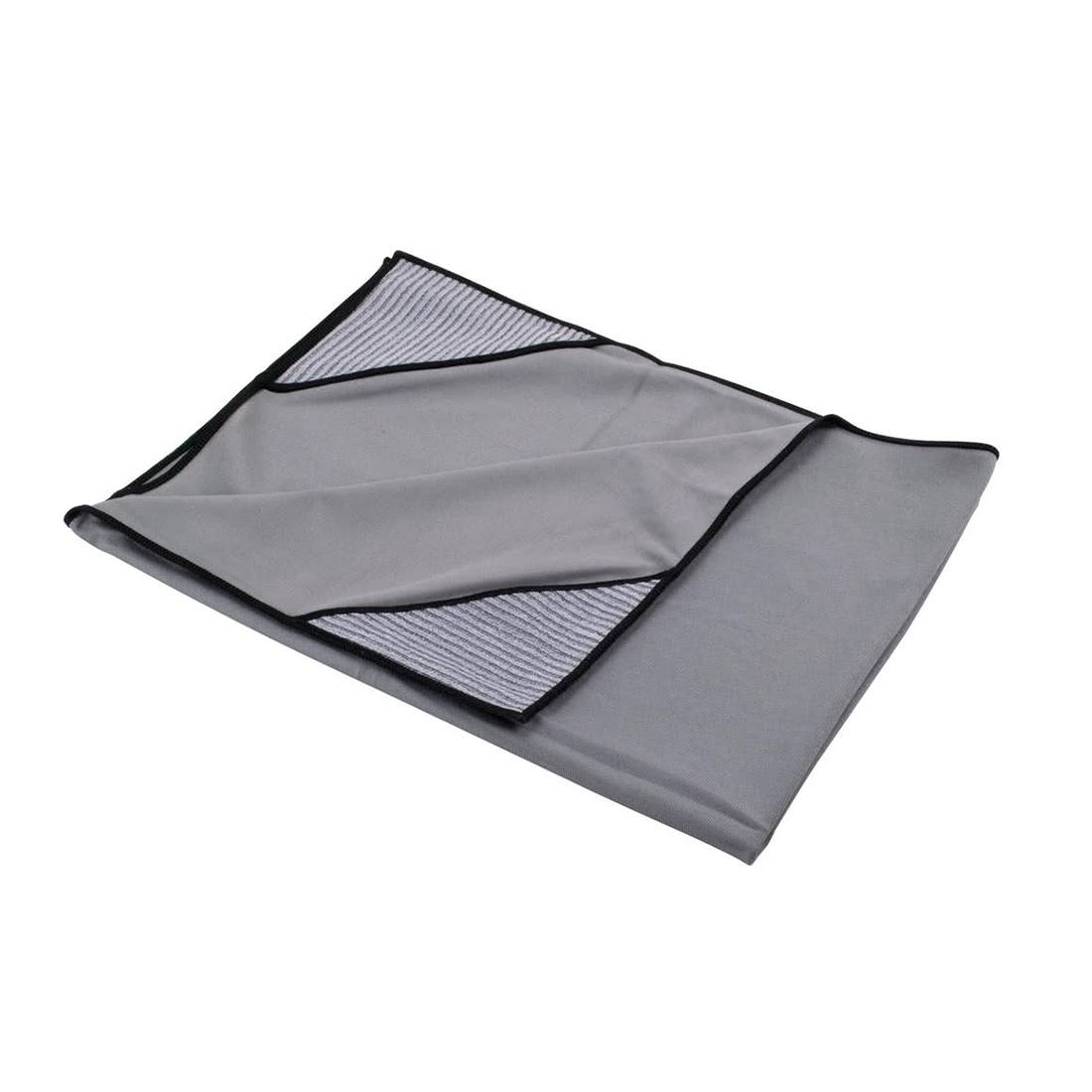
Food residue creates invisible conductive barriers that block touch signals. A thin layer of cooking oil reduces sensor accuracy by 70%, making activation nearly impossible.
Clean With Microfiber and Water Only
Unplug the blender and dampen a microfiber cloth with cool water—never spray directly onto the screen. Wipe in straight vertical motions from top to bottom, applying light downward pressure. Rotate the cloth frequently to avoid redepositing grime. Dry immediately with a second dry microfiber cloth using the same directional strokes. This removes oils without scratching the anti-glare coating.
Dissolve Stubborn Residue Safely
For dried sauces or sticky fingerprints, mix 1 teaspoon distilled white vinegar with 1 cup water. Dampen a corner of the cloth and gently rub affected areas in 1-inch circles for 5 seconds max. Immediately wipe with a water-dampened cloth, then dry thoroughly. Never use Windex, alcohol wipes, or paper towels—they degrade the touchscreen’s conductive layer within weeks.
Establish Weekly Maintenance Ritual
After each use, wipe the screen with a dry microfiber cloth to prevent buildup. Every Sunday, perform a deep clean using the vinegar solution method. Store a dedicated 6×6 inch microfiber square inside your blender’s storage compartment—this 20-second habit prevents 85% of touch activation failures.
Diagnose Hardware Failures When Basic Fixes Fail
If the screen remains dark after power verification, correct sequences, and cleaning, specific hardware issues may block activation.
Address Partial Illumination Issues
When the screen glows faintly but ignores touches, internal sensor ribbons have likely shifted. Press firmly along the screen’s top edge while activating power—this realigns connections temporarily. For permanent fixes, contact Ninja support with your model number; they’ll ship replacement sensor kits covered under warranty.
Fix Intermittent Responsiveness
If the screen works only when you tilt the blender base, internal wiring has fatigued. Unplug and gently squeeze the base corners while pressing power. Consistent activation during squeezing indicates loose wire harnesses requiring professional reseating—don’t attempt self-repair as it voids warranties.
Resolve Total Darkness After Power Checks
When all lights stay off despite verified power, check your home’s AFCI circuit breaker (different from standard breakers). These trip during minor surges that don’t affect other appliances. Reset by switching fully OFF, then ON. If it trips again immediately, unplug all kitchen appliances and call an electrician—your blender may be exposing dangerous wiring faults.
Prevent Future Touchscreen Failures Proactively
Most “dead screen” emergencies stem from preventable oversights. Implement these habits to ensure reliable activation:
Optimize Storage Conditions
Store your Ninja in a humidity-controlled area below 60% moisture—bathrooms and steamy kitchens corrode touch sensors. If storing unused for over 2 weeks, place silica gel packs inside the pitcher and cover with a cotton towel. Never coil the power cord tightly around the base; use loose figure-8 loops to prevent internal wire strain.
Implement Monthly Maintenance
Clean the touchscreen weekly as described. Every 30 days, run a maintenance cycle: fill pitcher halfway with warm water + 1 tsp baking soda, blend 30 seconds, then rinse. This prevents internal gunk affecting power distribution. Check cord connections monthly by unplugging/replugging firmly.
Install Critical Surge Protection
Plug your Ninja into a UL-listed surge protector rated for 1800+ joules—not a basic power strip. Replace protectors every 18 months as their components degrade. During thunderstorms, unplug completely; voltage spikes as small as 5 volts can scramble touchscreen firmware.
Your Ninja blender’s touchscreen should now activate reliably every time you need it. Remember: correct power sequences, clean sensor surfaces, and stable electrical connections solve nearly all “dark screen” emergencies. By mastering these model-specific protocols and prevention habits, you’ll avoid 95% of touchscreen failures that plague other users. Keep this guide handy—when that unresponsive black screen appears next time, you’ll have the exact fix within 60 seconds. For persistent issues, Ninja’s warranty covers touchscreen repairs for 1-3 years depending on model; simply call 1-866-646-3628 with your purchase receipt.