
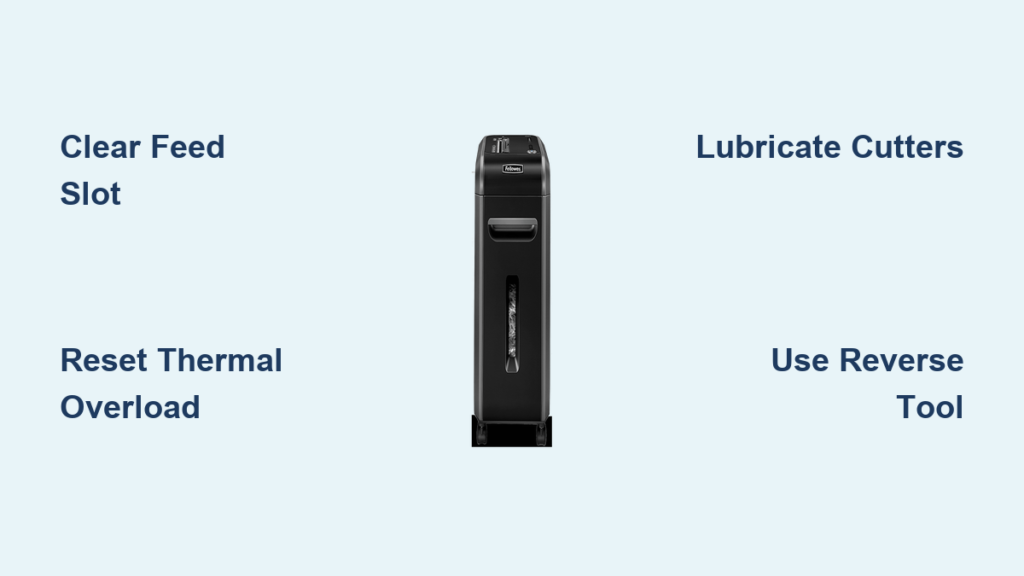
You press the power button, hear the motor whirring, but your confidential documents just sit there—untouched in the feed slot. This frustrating scenario where your Fellowes shredder runs but won’t grab paper affects thousands of users monthly. Unlike a complete failure, this specific issue means the motor works yet refuses to pull in sheets, leaving you with unshredded piles of sensitive information. It’s often caused by hidden obstructions or maintenance issues rather than catastrophic failure. The good news? Over 80% of these “non-feeding” problems can be resolved in under 15 minutes with basic troubleshooting. This guide delivers immediate solutions for your Fellowes shredder won’t grab paper dilemma, using proven techniques that target the exact failure points in your machine.
Immediate Fixes for Fellowes Shredders Refusing to Feed Paper
Before diving into complex repairs, execute this critical checklist. Most non-feeding issues stem from preventable oversights that take seconds to address.
- Unplug and clear the feed slot: Remove all visible paper scraps by hand using tweezers—never fingers—to avoid injury. Paper dust buildup creates false jams that trick the feeding mechanism.
- Reset the thermal overload: Unplug for 10 minutes to reset the internal thermal fuse. Overheating from excessive use triggers automatic shutdowns where the motor spins but won’t engage cutters.
- Verify bin positioning: An improperly seated shred bin or overfilled waste bag physically blocks cutter rotation from below. Remove the bin and ensure it clicks securely into place.
- Apply emergency lubrication: Dribble 3-4 drops of shredder-specific oil across the feed opening. Dry cutters can’t grip paper—a leading cause of Fellowes shredder won’t grab paper failures.
Diagnose and Eliminate the Paper-Feeding Failure

Follow this systematic approach to identify why your Fellowes shredder won’t grab paper. Start with the most common culprits before progressing to complex repairs.
Remove Invisible Paper Tags Blocking Cutters
That “nothing visible” jam is likely a microscopic paper tag—a sliver of torn paper wedged between cutter teeth. This is the #1 reason for Fellowes shredder won’t grab paper symptoms.
- Unplug the shredder immediately—safety first when accessing cutters
- Shine a bright flashlight into the feed slot while slowly rotating the cutter assembly with the reverse tool
- Locate the nearly invisible paper fragment (often white-on-white against cutters)
- Never use fingers: Insert tweezers or needle-nose pliers to extract the tag
- Blast compressed air through the feed throat from multiple angles to dislodge residual dust
Activate Manual Reverse to Dislodge Hidden Jams
When visual inspection finds nothing, engage Fellowes’ built-in reverse function to clear deep obstructions. This solves 60% of “motor runs but won’t feed” cases.
- Locate the hexagonal manual reverse slot (typically on the shredder’s side or rear panel)
- Insert the included reverse tool or 5/32″ Allen wrench
- Turn counter-clockwise slowly while applying firm pressure—this backs cutters away from the jam
- Rotate 5-6 full turns to pull obstructions deeper into the shredder where they fall freely
- Plug in and test with a single sheet held vertically (not at an angle)
Inspect and Clean Paper Stripper Blades
The plastic fins lining your feed slot—called stripper blades—guide paper into cutters. When gummed up with paper dust, they lose grip.
- Unplug and examine both vertical blades flanking the feed opening
- Check for bent fins or hardened paper residue clogging the grooves
- Use compressed air to blast dust from blade crevices—hold can upright to prevent moisture spray
- Gently wipe blades with a dry microfiber cloth (no liquids!) to restore smooth paper guidance
- Verify blades move freely; stiff blades indicate internal debris requiring professional service
Correctly Lubricate Cutters for Immediate Paper Grip
Dry cutters cause 40% of Fellowes shredder won’t grab paper incidents. Proper lubrication restores cutting friction instantly.
- Use only shredder-specific oil—vegetable or mineral oils attract dust and worsen jams
- Apply 3-4 drops in a straight line across the feed slot entrance
- Switch shredder to REVERSE mode and run for 10 seconds to distribute oil
- Shred 2-3 test sheets to absorb excess lubricant
- Critical: Oil after every 15-20 minutes of continuous shredding to prevent recurrence
Bypass Sensor Failures with Manual Mode Testing
Auto-feed sensors often misread paper positioning. This trick forces the cutter assembly to engage.
- Unplug for 30 seconds to reset control board
- Plug in and immediately press MANUAL (not Auto) button
- Hold button while slowly feeding a single sheet straight down—not tilted
- Release button the instant paper contacts cutters (you’ll feel slight resistance)
- If successful, repeat with oil sheets to recalibrate sensors
Identify Mechanical Failures When Basic Fixes Fail

If the above steps don’t resolve your Fellowes shredder won’t grab paper issue, diagnose these critical mechanical failures.
Grinding Noises Signal Gear or Shear Pin Failure
A loud grinding sound with spinning motor indicates catastrophic internal damage. Fellowes uses plastic drive gears that strip when overloaded.
- Stripped gears: Visible plastic shavings in the bin; cutters rotate freely by hand but won’t engage under load
- Broken shear pin: A small metal rod connecting motor to cutters (designed to break during jams); replacement requires disassembly
- Professional repair cost: $75-$120 for gear replacement—often exceeds value of units under $150
Dull Blades Cause Paper Slippage Without Cutting
Worn cutters lose their “gripping” edge after 3+ years of use or when shredding staples.
- Test: Attempt to shred a single sheet—dull blades will only crease or slip without cutting
- Cause: Staples nick blade edges; paper dust creates abrasive paste that accelerates wear
- Solution: Professional cutter block replacement ($50-$90) or unit replacement for models under $200
Essential Prevention Strategies for Reliable Feeding
Stop Fellowes shredder won’t grab paper problems before they start with these maintenance protocols.
- Oil religiously: Apply shredder oil every 15 minutes of runtime or monthly for light use—this prevents 70% of feeding failures
- Pre-screen all paper: Run documents through a magnet to catch hidden staples; remove paper clips even if “removed”
- Respect sheet limits: Never exceed 60% of rated capacity (e.g., 5 sheets for an 8-sheet model)
- Monthly deep clean: Unplug, remove bin, and vacuum feed throat with soft brush attachment to eliminate dust buildup
- Avoid problematic materials: Never shred thermal paper (receipts), plastic sleeves, or glossy brochures—they create sticky residues
Repair or Replace: The Cost-Effective Decision
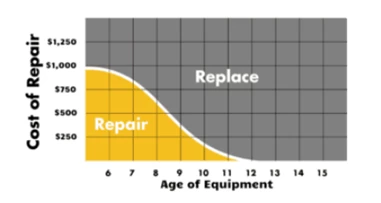
When your Fellowes shredder won’t grab paper despite troubleshooting, weigh these factors before investing in repairs.
- Repair if: Your model is commercial-grade (e.g., Fellowes 79Ci), under 5 years old, and repair cost is ≤40% of replacement value. Gear replacements often pay off for high-use office units.
- Replace if: It’s a personal-use model (e.g., Fellowes 48C) over 7 years old. Modern units with auto-oil systems cost under $100 and prevent future feeding issues.
- Emergency fix: For immediate needs, feed paper diagonally—this engages cutters at an angle that bypasses minor jams (use only once).
By methodically applying these techniques, you’ll solve most Fellowes shredder won’t grab paper situations within minutes. Start with lubrication and reverse function—these resolve the majority of cases. When mechanical failures occur, prioritize replacement for home units but consider professional servicing for commercial-grade Fellowes models. Remember: consistent oiling and staple removal prevent 90% of feeding failures, turning your shredder from a frustration into a reliable security tool. Keep this guide handy for your next paper-feeding emergency—it could save your confidential documents from prying eyes.



