Have you ever needed to share your database structure with a colleague or migrate your schema to a new environment without moving actual data? Exporting table attributes—the structure, columns, data types, and constraints—is a critical task for database administrators and developers. Whether you’re documenting your database design, preparing for version control, or setting up a new development environment, knowing how to export table attributes from MySQL Workbench saves you hours of manual work. This guide reveals the most efficient techniques to extract your table schemas while avoiding common pitfalls that can waste your time.
Most users mistakenly export entire databases only to realize they needed just the structure. By mastering these methods, you’ll eliminate unnecessary data transfers and create clean, portable schema definitions. You’ll discover multiple approaches—from GUI wizards to command-line tools—that let you capture exactly what you need: the blueprint of your tables without the data. Let’s dive into the practical solutions that will make you more efficient when working with MySQL databases.
Export Table Structure with Data Export Wizard
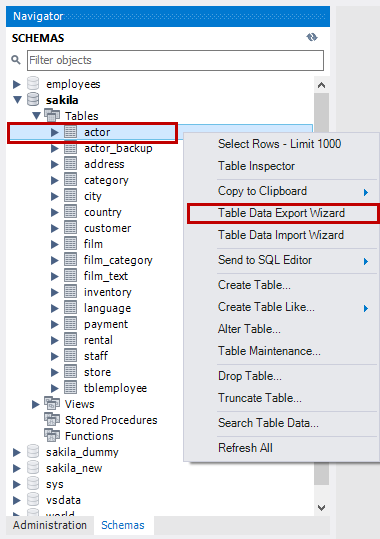
MySQL Workbench’s Data Export tool offers the most straightforward approach for exporting table attributes without data. This method generates a clean SQL file containing only CREATE TABLE statements with all your column definitions, constraints, and indexes.
Selecting Structure-Only Export Options
To export just table attributes using the Data Export wizard:
- Navigate to Server > Data Export from the top menu
- Select your target database and check the specific tables you need
- Crucially select “Dump Structure Only”—this prevents any row data from being included
- Choose “Export to Self-Contained File” and specify your destination path
- Click Start Export to generate the SQL file
Pro tip: For large databases, export one schema at a time to avoid memory issues. The resulting SQL file will contain complete CREATE TABLE statements with all attributes—column names, data types, default values, and constraints—perfect for recreating your structure elsewhere.
Advanced Settings for Clean Schema Exports
For more precise control over your attribute export:
- In the Advanced Options dialog, ensure “Disable Keys” and “Extended Inserts” are unchecked
- Verify “Create Options” includes “Add DROP TABLE” if you want the export to safely recreate tables
- Set “Character Set” to match your database collation to prevent encoding issues
These settings ensure your exported structure matches your original database exactly, with no data to clutter the file. The process typically takes under 30 seconds for databases with fewer than 100 tables, making it ideal for quick documentation tasks.
Generate SHOW CREATE TABLE Statements for Precise Schema
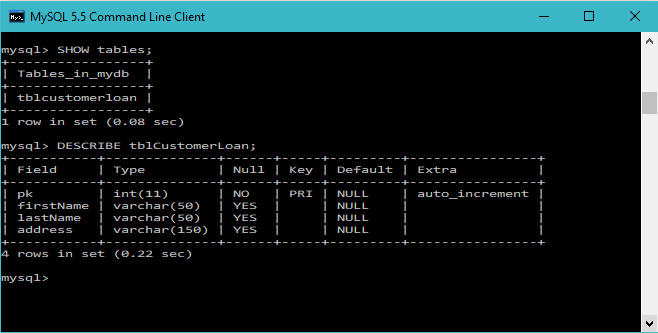
When you need the exact SQL to recreate a single table with all its attributes, the SHOW CREATE TABLE command delivers perfect results. This method is particularly valuable for version control or when sharing specific table structures with team members.
Executing and Exporting Single Table Definitions
To export one table’s attributes:
- Open a new SQL tab in MySQL Workbench
- Run
SHOW CREATE TABLE your_database.your_table; - The results pane displays the complete CREATE TABLE statement
- Right-click the result and select Export > Export as SQL
This approach captures every detail of your table structure—including column attributes, indexes, foreign keys, and table options—in a single executable statement. Unlike the Data Export wizard, this method gives you immediate visibility of the exact SQL that will recreate your table.
Batch Export Multiple Table Structures
For exporting several tables at once:
sql

SELECT GROUP_CONCAT(

  CONCAT('SHOW CREATE TABLE ', table_name, ';')

  SEPARATOR '

'

) INTO OUTFILE '/tmp/create_statements.sql'

FROM information_schema.tables

WHERE table_schema = 'your_database'

AND table_name IN ('table1', 'table2', 'table3');
This generates separate CREATE statements for each specified table, creating a comprehensive schema definition file you can execute elsewhere.
Use the Schema Inspector for Visual Attribute Review
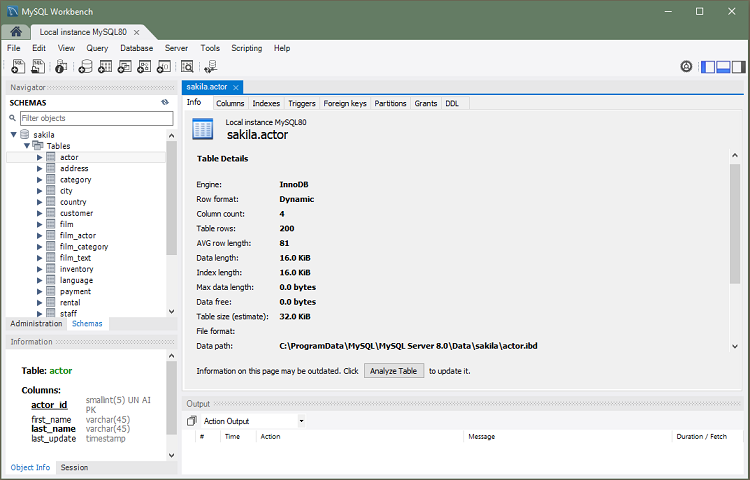
Before exporting, the Schema Inspector provides the most detailed visual overview of your table attributes—helping you verify exactly what you’ll export.
Navigating Table Attributes Visually
- In the Object Browser, right-click your target table
- Select Table Inspector from the context menu
- Review the Columns tab for data types, defaults, and null constraints
- Check the Indexes tab for all index definitions
- Examine the Foreign Keys tab for relationship details
This visual inspection prevents surprises during export by showing you exactly which attributes exist. Notice how each column’s properties—including character set, collation, and comments—are displayed clearly before you commit to export.
Generating Inspector Reports
To create documentation from the Inspector:
- With the Table Inspector open, go to File > Export > Export as PDF
- Select the specific tabs containing attributes you need to document
- Save the PDF for team sharing or archival purposes
This creates human-readable documentation of your table structure that’s perfect for non-technical stakeholders who need to understand your database design.
Command Line Alternative: mysqldump –no-data for Structure Only
When Workbench struggles with large databases, the command line offers a more robust solution for exporting table attributes.
Executing Structure-Only Exports via Terminal
bash

mysqldump -u [username] -p --no-data [database_name] > schema_export.sql
This command creates a clean SQL file containing only CREATE statements for all tables in the specified database. Important: You’ll be prompted for your password—never include it directly in the command for security reasons.
Targeting Specific Tables from Command Line
To export attributes for particular tables:
bash

mysqldump -u user -p --no-data database_name table1 table2 > specific_tables.sql
This approach bypasses Workbench’s GUI limitations and handles large schemas more efficiently. The resulting file contains identical CREATE TABLE statements to what Workbench would generate, but often completes faster for databases with hundreds of tables.
Troubleshooting Common Attribute Export Issues
Even straightforward exports can encounter problems that prevent successful attribute extraction.
Resolving Permission Errors During Export
If you see “Access denied” errors when exporting:
- Verify your MySQL user has SELECT and SHOW VIEW privileges
- For command line exports, ensure the output directory has write permissions
- On Windows, try saving to your user directory instead of Program Files
Critical: Never run MySQL Workbench as administrator to bypass permissions—this creates security risks. Instead, properly configure directory permissions for your export location.
Handling Large Schema Export Failures
When exporting databases with hundreds of tables:
- Use the command line method instead of Workbench GUI
- Add
--skip-lock-tablesto prevent timeout errors - For extremely large schemas, export one table at a time using SHOW CREATE TABLE
These adjustments prevent the “Lost connection to MySQL server during query” errors that commonly plague large structure exports through the Workbench interface.
Best Practices for Documenting Table Structures
Creating reliable, maintainable schema documentation requires following these essential practices.
Version Control Integration for Schema Changes
- Export your table attributes before making structural changes
- Commit the SQL file to your version control system with a descriptive message
- After modifications, export again and commit the updated structure
This creates an audit trail of your schema evolution that’s invaluable for debugging and rollback scenarios. Many teams automate this process using pre-commit hooks that automatically export structure changes.
Creating Readable Schema Documentation
For non-technical stakeholders:
- Export to PDF using the Schema Inspector’s export function
- Include table comments and column descriptions in your database
- Generate ER diagrams alongside structure exports for visual context
These documentation techniques transform raw SQL into meaningful resources that bridge the gap between database administrators and business analysts.
Automating Table Structure Exports for Version Control
Manual exports become impractical for active development environments. Implement these automation techniques to keep your schema documentation current.
Scheduled Daily Structure Backups
Create a simple batch file (Windows) or shell script (Linux/macOS):
“`bash
!/bin/bash
TIMESTAMP=$(date +”%Y%m%d”)
mysqldump -u user -p[password] –no-data database_name > /backups/schema_$TIMESTAMP.sql
“`
Schedule this with Task Scheduler (Windows) or cron (Linux/macOS) to maintain dated backups of your schema structure—without any data.
Integrating with Development Workflows
Configure your CI/CD pipeline to:
- Export table attributes before database migrations
- Store the pre-migration structure in your artifact repository
- Compare against post-migration structure to verify changes
This practice catches unintended schema modifications before they reach production environments.
By mastering these techniques for exporting table attributes from MySQL Workbench, you’ll streamline database documentation, simplify migrations, and enhance team collaboration. Whether you prefer the visual interface or command-line efficiency, these methods ensure you capture exactly what you need—the blueprint of your database structure—without unnecessary data transfers. Start implementing these approaches today to transform how you manage and share your database schemas.