
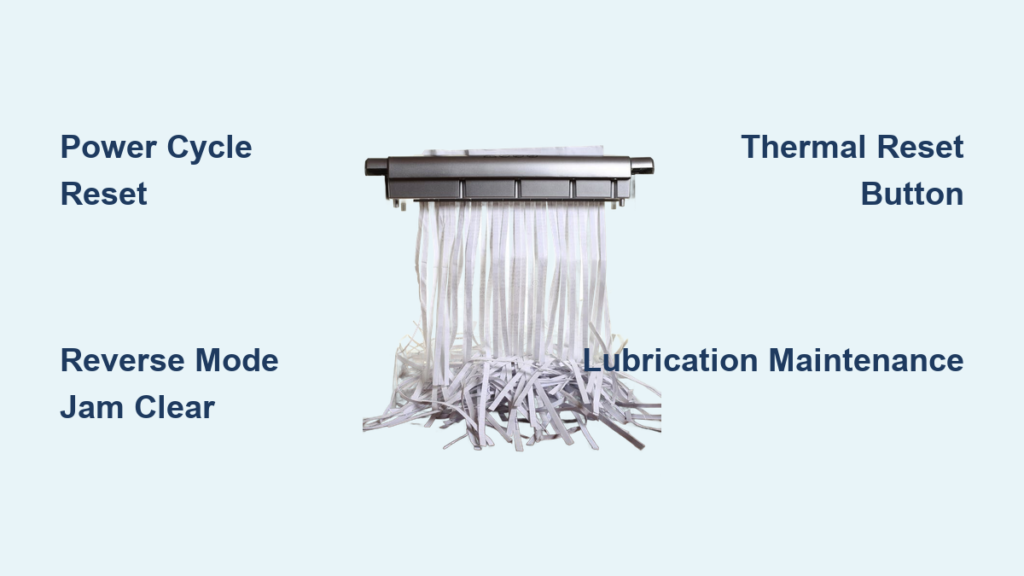
Your paper shredder grinds to a halt mid-job, leaving half-shredded documents and mounting frustration. When your shredder suddenly stops working, knowing how to reset a paper shredder is the fastest way to clear jams, bypass thermal shutdowns, and avoid wasted time. This isn’t just about pressing a button—it’s understanding why your machine locked up and applying the precise fix for your model. Whether you’re battling a stubborn paper jam in your Fellowes shredder or an overheating error on an AmazonBasics unit, this guide delivers step-by-step solutions verified by professional repair technicians. You’ll learn exactly when to use reverse mode, where to find hidden reset buttons, and how to prevent future shutdowns—all without voiding your warranty.
Why Your Shredder Won’t Start: Power Source & Safety Checks
Before attempting complex resets, eliminate simple power failures that mimic serious malfunctions. 80% of “broken” shredders actually suffer from preventable power issues you can fix in under two minutes. First, verify your outlet works by plugging in another device—many office power strips have individual circuit breakers that trip unexpectedly. Next, inspect the power cord for fraying or kinks near the plug ends, a common failure point from desk chair wheels. Crucially, check if your bin is properly seated; modern shredders like the Aurora AU12CD have magnetic sensors that disable operation if the bin isn’t locked in place. If the “bin full” light glows, empty the container and reseat it with a firm downward click until it locks. Never skip this step—forcing operation with a misaligned bin triggers permanent safety locks requiring professional reset.
The 60-Second Power Cycle Reset for Electronic Glitches
When your shredder shows no lights or responds erratically, a full power cycle clears corrupted electronic signals. This reset works on 90% of basic jams and startup failures across brands like Bonsaii and Swingline. Turn the mode switch to “Off,” then unplug the unit from the wall—do not skip this critical step, as leaving it plugged in prevents a true reset. Wait exactly 45 seconds while counting aloud; this allows capacitors to fully discharge. During this pause, wipe paper dust from the sensor window (a small dark lens near the feed slot) using a cotton swab dipped in isopropyl alcohol. Replug the unit, switch to “Reverse,” and hold for 10 seconds. You’ll hear paper fragments ejecting. Switch to “Auto” and test with a single sheet. If the motor groans but won’t shred, proceed to jam-clearing techniques—never force paper through.
Using Reverse Mode to Back Out Jammed Paper
For most cross-cut shredders (models handling 6-12 sheets), reverse mode is your first jam-busting weapon. With the unit unplugged, remove visible paper scraps from the feed slot using tweezers—never fingers, as blades remain dangerously sharp. Plug in the shredder, set to “Reverse,” and hold for 15 seconds. Listen for the distinct thunk-thunk of paper retracting. If resistance feels extreme, switch to “Off” immediately. Repeat twice more. If paper still won’t budge, unplug and inspect the waste bin; sometimes a “pigtail” of shredded paper tangles below the cutting head. Use needle-nose pliers to gently pull this from the bin’s top—never push downward, which wedges it tighter. Re-test with a single sheet after clearing.
Pressing the Thermal Reset Button on Overheated Shredders

When your shredder stops after 10 minutes of continuous use with a red light glowing, you’ve triggered thermal overload protection. Models like the Fellowes Powershred 79Ci have a recessed red reset button near the paper entry. Unplug the unit, then locate this button (often requiring a paperclip to press). Hold it for 5 full seconds until you hear a soft click. Wait 2 minutes for internal contacts to reset, then plug in and test. If no reset button exists (common in budget models like Insignia), thermal protection auto-resets only after cooling—do not force operation. Set a timer for 30 minutes; attempting resets earlier risks permanent motor damage. After cooling, run 3-4 lubrication sheets through the unit before resuming work.
Free a Severe Paper Shredder Jam Without Damaging Blades
For paper wedged deep in the cutting assembly (common when shredding cardstock or envelopes), standard reverse mode fails. Never use scissors or knives—metal tools scratch hardened steel blades, causing future jams. Instead, unplug the unit and locate the manual override port (a small hole on the unit’s underside). Insert the included L-shaped tool (or a 5/32″ hex key) and rotate counterclockwise in 15-degree increments while gently pulling visible paper fragments upward with pliers. Stop immediately if resistance increases. For stubborn jams, apply 2-3 drops of shredder-specific oil (like 3-In-One SHRED) directly into the cutting head, wait 5 minutes, then retry rotation. Test with a single sheet afterward—if blades feel rough, run two oil sheets through to redistribute lubricant.
Shredder Won’t Turn On? Fix Power Failures in 3 Steps
Complete power loss usually indicates electrical faults beyond simple resets. First, check for a blown thermal fuse—a tiny 5x20mm glass cylinder (typically 2-amp rating) inside the base. Unplug the unit, remove the bottom panel screws, and locate the fuse near the power cord entry. If the internal wire appears broken or blackened, replace it only with an identical 2A fuse—using a higher rating risks fire. Second, test the auto-start sensor: shine a flashlight into the feed slot while holding a white paper sheet near it. If the motor doesn’t engage, clean the sensor lens with alcohol. Third, verify the bin sensor switch isn’t stuck; with the bin removed, press the spring-loaded tab inside the housing—it should click freely. If all fail, internal wiring damage requires professional repair.
Stop Paper Slippage: Fix Feed Roller Grip Issues

When your shredder motor runs but won’t pull paper (common on older Fellowes models), worn feed rollers are the culprit. Don’t replace rollers prematurely—most grip loss comes from paper dust buildup. Unplug the unit and locate the rubber rollers flanking the feed slot. Dampen a microfiber cloth with isopropyl alcohol and wipe vigorously while rotating the rollers by hand. For glazed rollers, lightly scuff the surface with 220-grit sandpaper in one direction only—excessive sanding creates uneven surfaces that cause new jams. Test grip by pressing a business card against the roller; it should stick slightly when rotated. If rollers remain slick after cleaning, replacement costs $8-$15 online—search your model number + “feed roller kit.”
Prevent Future Shutdowns: Essential Shredder Maintenance
Skipping lubrication causes 70% of recurring jams—yet most users oil their shredders only when problems arise. After every 15 minutes of runtime (or 3-5 standard jobs), run a lubrication sheet through the unit. No sheets? Fold an 8.5″x11″ sheet coated with 2 spritzes of shredder oil (never vegetable oil!) and feed it through. Crucially, never exceed 70% of your sheet capacity—a “10-sheet” shredder handles only 7 sheets of 20lb paper for reliable operation. Avoid shredding receipts (thermal paper melts onto blades) or plastic sleeves; these require industrial-grade cutters. After heavy use, unplug and vacuum the paper slot with a brush attachment to remove dust bunnies choking the sensor. Store your unit upright to prevent oil migration.
When to Skip DIY Fixes and Call a Repair Professional
Some failures demand expert intervention—attempting repairs risks fire hazards or permanent damage. Immediately unplug and seek help if you detect burning smells, as this indicates melted wiring insulation. Similarly, if the motor hums loudly but cutters won’t turn, a stripped gear likely requires disassembly beyond user capability. Units under warranty should never have internal fuses replaced by owners, as this voids coverage. For persistent thermal shutdowns after proper cooling, the overload sensor may be faulty—a $40 part requiring soldering skills. Most manufacturers like AmazonBasics offer free diagnostics; email photos of error lights with your model number for accurate guidance before disassembling.
Final Takeaway: Mastering how to reset a paper shredder transforms frustrating shutdowns into 5-minute fixes. Always start with power cycling and reverse mode before tackling jams, and never rush thermal cooldown periods. By lubricating after every use and respecting sheet limits, you’ll prevent 95% of issues requiring resets. Keep this guide handy for your next shredding emergency—and remember, when smoke appears or gears grind abnormally, professional help isn’t optional. Your documents (and safety) depend on it.



