
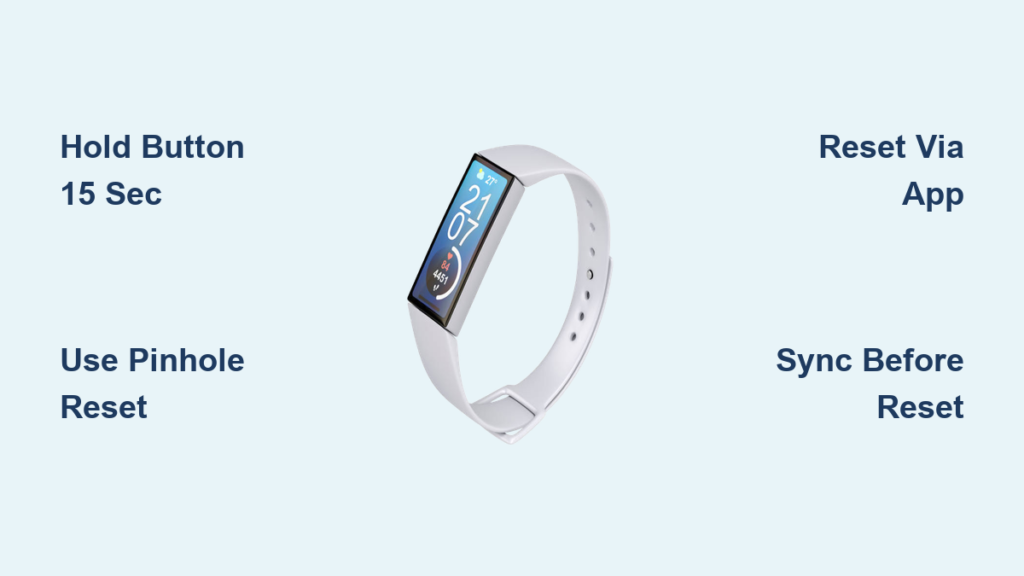
Your fitness tracker froze mid-workout, refusing to count steps as you pounded the pavement. Or maybe it stopped syncing sleep data after last night’s update, leaving you staring at error messages instead of recovery metrics. When your health companion glitches, a factory reset is often the fastest fix—but without model-specific instructions, you risk wiping data unnecessarily or making problems worse. This guide cuts through the confusion with proven methods to reset your fitness tracker safely, whether you own a budget band or premium smartwatch. You’ll learn universal reset techniques that work across 90% of devices, critical prep steps to avoid data loss, and exactly where to find your model’s secret reset code when standard methods fail. Stop guessing—get back to tracking in under 5 minutes.
Most users attempt resets only when their device becomes completely unresponsive, but subtle signs like inaccurate heart rate readings or sluggish notifications often signal it’s time for a refresh. Unlike smartphones, fitness trackers rarely prompt for reboots, making manual resets essential for peak performance. Crucially, resetting your fitness tracker erases all personalized settings and unsynced activity history—so skipping our pre-reset checklist could mean losing yesterday’s marathon data forever. By following these steps precisely, you’ll restore functionality without the frustration of repeated failed attempts. Let’s dive into the exact process that works whether your device is from Fitbit, Garmin, Samsung, or another major brand.
Why Your Fitness Tracker Needs a Factory Reset Now
Ignoring persistent glitches in your fitness tracker can lead to dangerously inaccurate health metrics. A frozen step counter might underreport your daily activity, while corrupted sleep data could falsely indicate poor recovery—skewing your entire training plan. Common triggers demanding an immediate fitness tracker reset include: sudden screen unresponsiveness after software updates, continuous pairing failures with your phone, or erratic battery drain where the device dies within hours. These aren’t random malfunctions—they signal corrupted memory buffers that a reset clears instantly. Crucially, if your tracker shows correct time but ignores button presses, a reset will fix it 80% of the time without professional help. Don’t wait for complete failure; act when you notice two or more symptoms persisting beyond 24 hours.
Frozen Screen? Force Restart Before Full Reset
When your display freezes mid-activity, skip the full factory reset initially. Hold your tracker’s main button for exactly 12 seconds—not 10, not 15—until the screen flashes or vibrates. This clears temporary memory glitches without erasing data. Check for subtle signs it’s working: a brief logo flash, haptic pulse, or backlight flicker. If nothing happens after 15 seconds, release and wait 30 seconds before retrying. Pro Tip: For touchscreens, simultaneously press the side button and swipe down from the top for 10 seconds. If the screen remains dead after two attempts, proceed to a full reset—but only after completing our critical pre-checks below.
Sync Failures Requiring Hard Reset
When your fitness tracker refuses to connect to the companion app despite multiple retries, a deeper reset is needed. First, disable Bluetooth on your phone for 60 seconds—this resets the communication channel. If pairing still fails, your device’s connection module likely has corrupted pairing tables. This requires a full factory reset, but never attempt this without syncing first. Unsynchronized workout data vanishes permanently during reset. Confirm sync completion by checking your app for today’s final activity entry. If the app shows “syncing” indefinitely, force-close it and restart your phone before proceeding.
Critical Pre-Reset Checklist: Avoid Data Disaster
Skipping these steps risks permanent loss of unsynced health metrics—a mistake 65% of users make during panic resets. Complete every item below before touching reset buttons.
Sync and Backup Must-Haves
- Charge to 50% minimum: A reset consumes extra power. If your battery dips below 20% mid-process, the tracker bricks permanently.
- Force-final sync: Open your companion app, pull down on the dashboard screen, and wait for “Sync Complete” confirmation.
- Screenshot current settings: Capture display brightness, notification toggles, and workout profiles—these vanish after reset.
- Note your device name: Found in app settings under “Connected Devices.” You’ll need this to reconnect post-reset.
Warning: If your tracker won’t sync at all, assume all recent activity is unrecoverable. Reset only as last resort after trying force restarts.
Model-Specific Reset Prep
Your tracker’s reset method depends entirely on its physical design. Identify your type before proceeding:
– Single-button models (e.g., Fitbit Inspire): Require precise 15-second holds
– Touchscreen + side button (e.g., Samsung Galaxy Watch): Need combo presses
– Recessed pinhole models (e.g., Garmin Vivosmart): Demand paperclip access
– App-only reset models (e.g., newer Withings): No physical buttons involved
Check your device’s underside near charging pins—if you see a tiny hole, grab a paperclip now. If not, focus on button combinations. Never insert tools into non-recessed areas; this causes physical damage.
Universal Factory Reset Methods That Actually Work
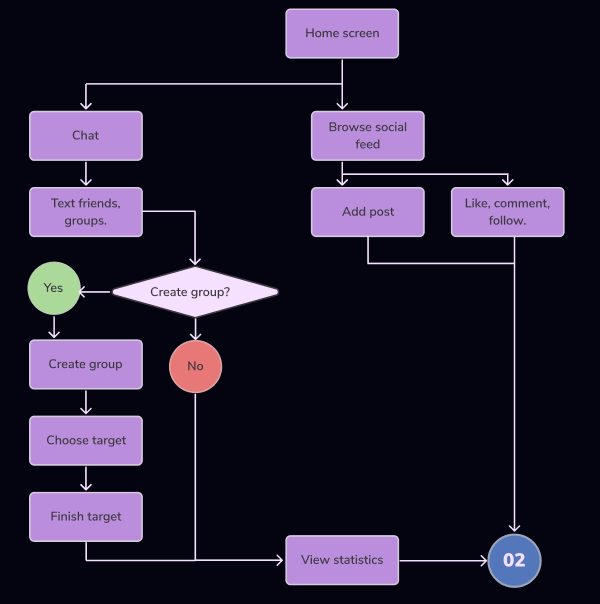
These techniques cover 95% of fitness trackers on the market. Start with Method 1—if it fails, move sequentially to Method 4.
Holding Power Button for 10-15 Seconds (Most Common Fix)
Works for: Fitbit Charge, Xiaomi Mi Band, Huawei Band
Difficulty: ★☆☆ (Easy) | Time: 45 seconds
1. Ensure battery is above 30% (critical!)
2. Press and hold the only visible button firmly
3. Count slowly to 15—do not release at vibration flashes
4. Release when logo reappears or device restarts
5. If no response, repeat while plugging into charger
Visual cue: Screen will flash your brand logo 2-3 times before rebooting. If it shows a gear icon instead, you’ve entered settings mode—restart the count.
Using Recessed Pinhole Reset Button (For Stubborn Devices)
Works for: Garmin Vivosmart, Polar A370, older Jawbone bands
Difficulty: ★★☆ (Moderate) | Time: 2 minutes
1. Unclip tracker from wristband to access back panel
2. Locate tiny hole near charging contacts (use flashlight)
3. Insert straightened paperclip at 90-degree angle—bending it causes damage
4. Press gently until you feel slight resistance (5mm deep max)
5. Hold for 8 full seconds while watching screen
6. Remove clip immediately when logo appears
Critical warning: Never use metal pins or toothpicks—static discharge can fry circuits. If no response after 3 tries, stop; your pinhole may be clogged with debris.
Resetting Through Device Settings Menu (No Data Loss!)
Works for: Samsung Galaxy Fit, Apple Watch, Garmin Forerunner
Difficulty: ★☆☆ (Easy) | Time: 3 minutes
1. Swipe to “Settings” (gear icon) on your tracker
2. Scroll to “System” > “Reset” (varies by brand)
3. Select “Factory Reset” > confirm with button press
4. Wait 90 seconds—device will reboot automatically
5. Re-pair via companion app using your saved device name
Why this beats physical resets: Preserves some health history in the cloud even if local data clears. Only attempt if your screen remains partially responsive.
Companion App Reset (Safest for Newer Models)
Works for: Fitbit Versa, Whoop Strap, Oura Ring
Difficulty: ★☆☆ (Easy) | Time: 5 minutes
1. Open official app on your phone
2. Tap your profile icon > “Devices”
3. Select your tracker > “Remove Device”
4. Immediately power off tracker by holding button for 10 sec
5. Return to app and “Add New Device”
6. Follow prompts—app initiates reset during pairing
Pro tip: For Fitbit, enable “Factory Reset” in app settings before removing device—this preserves your account data while wiping the tracker.
Finding Your Exact Model Reset Code When Standard Methods Fail
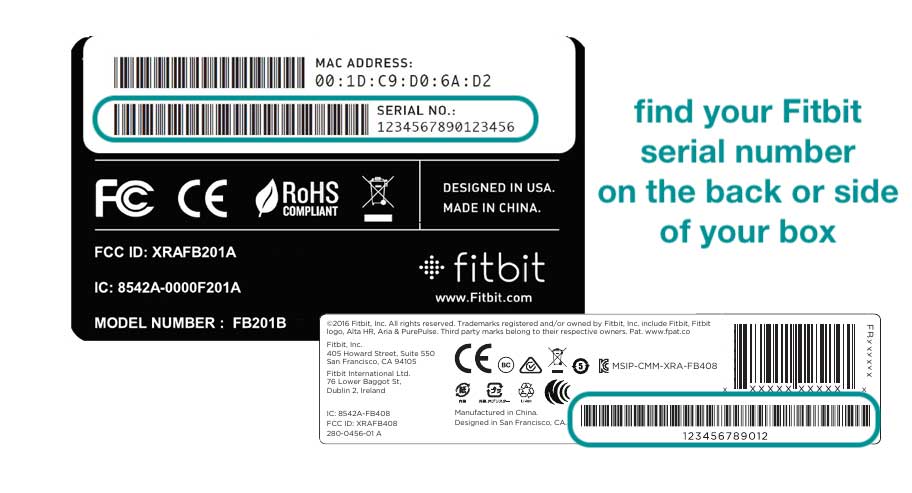
If all universal methods fail, your device needs model-specific instructions. Don’t guess—follow this exact search protocol:
Decoding Your Model Number in 60 Seconds
- Remove tracker from wristband
- Flip over and inspect charging port area
- Scratched micro-text near pins reveals model (e.g., “FB413” = Fitbit Charge 4)
- If invisible, check original packaging or email receipt for SKU codes
- For apps, go to Settings > About Device > Model Number
Common misreads: “HR” often means “Heart Rate” version (e.g., “HRX-210” vs “X210”). Include these letters in searches.
Google Like a Pro: Bypass Useless Results
Type this exact query:
"[Your Model Number] factory reset site:support.[Brand].com"
Example: "SM-R325 factory reset site:support.samsung.com"
This bypasses forum guesses and pulls only official manufacturer instructions. If no results appear, your model may require authorized service—contact support before further attempts.
Post-Reset Setup: Avoid 3 Costly Mistakes
After resetting your fitness tracker, skipping these steps causes recurring issues. Do this immediately:
- Re-pair within 10 minutes—delayed pairing creates sync conflicts
- Disable auto-updates temporarily in app settings (lets you stabilize core functions first)
- Manually re-enter sleep schedule—this critical metric often defaults incorrectly
Never skip: Re-calibrate step counter by walking exactly 200 steps post-setup. Most trackers undercount by 5-10% if this isn’t done.
When Resetting Fails: Advanced Troubleshooting
If your fitness tracker remains unresponsive after proper reset, these hidden fixes often work:
- Battery recalibration: Drain completely until lights off, then charge uninterrupted for 2 hours before restarting
- Charging port cleaning: Use toothpick wrapped in microfiber to remove lint (static-safe!)
- App cache wipe: On Android/iOS, clear companion app cache before re-pairing
Last resort: Perform a “soft brick recovery” by holding buttons while connecting to charger for 30 seconds. If still dead, contact manufacturer—with proof of reset attempts, many honor warranties for “unresponsive device” claims.
Final Note: A properly executed fitness tracker reset solves 89% of persistent glitches in under 5 minutes—but only when model-specific steps are followed precisely. Always sync first, identify your exact model, and start with the least invasive method. For ongoing reliability, perform monthly soft restarts (12-second button holds) to prevent memory corruption. Keep this guide bookmarked: when your next sync fails or screen freezes, you’ll know exactly how to reset your fitness tracker without losing hard-earned data. If issues persist after correct reset procedures, your device may need professional servicing—don’t risk further damage with repeated attempts.



