That morning walk to the mailbox just triggered an automatic workout log. Your weekend nap mysteriously counted as 8,327 steps. You’re not imagining things—fitness trackers have become overly aggressive data collectors, running 24/7 without your consent. If you’re searching for how to turn off fitness tracker functions across your devices, you’re fighting back against invasive step counting, unwanted activity logging, and constant privacy leaks. This guide delivers exact, model-specific instructions to silence every pedometer, disable automatic workout detection, and reclaim control of your movement data—no tech degree required. You’ll learn which settings actually stop tracking versus placebo toggles, plus verification methods to confirm your data isn’t still flowing to the cloud.
Disable iPhone Motion & Fitness Tracking in 3 Taps
Your iPhone’s motion coprocessor never sleeps, logging steps even when apps aren’t open. To permanently halt this background surveillance, skip the Health app and head straight to system controls. The critical toggle lives buried under Settings > Privacy & Security > Motion & Fitness—not in Health settings as most assume. Flipping “Fitness Tracking” OFF here cuts off step counting, distance measurement, and active energy calculations at the hardware level. This single action blocks both Apple’s native tracking and third-party apps like Strava from accessing motion sensors. Expect immediate battery savings of 10-15% since the M-series chip stops processing movement data 24/7.
Stop Apple Watch from Counting Steps Automatically
Contrary to popular belief, Apple Watch settings live entirely on your iPhone. Open the Watch app, tap My Watch > Privacy, then disable Fitness Tracking. This prevents your watch from recording workouts, heart rate spikes during stress, or even standing reminders. For complete sensor shutdown, pair this with Settings > Screen Time > Content & Privacy Restrictions > Privacy > Motion & Fitness > Don’t Allow Changes. This two-step method stops the infamous “10,000 steps” ghost counts that plague sleep mode. Warning: Disabling this also pauses fall detection—only use if privacy outweighs safety features.
Revoke Third-Party App Permissions Completely
Many users miss this critical layer: individual app permissions. Go to Settings > Privacy & Security > Health, then scroll through every listed app. Toggle OFF permissions for Steps, Distance, and Workouts for non-essential apps like MyFitnessPal or Facebook. For nuclear options, disable “Allow Apps to Request to Read Data” at the top. This prevents apps from sneaking back in during updates. Pro tip: Check weekly—fitness apps often re-enable permissions after iOS updates.
Turn Off Google Fit Activity Tracking on Android
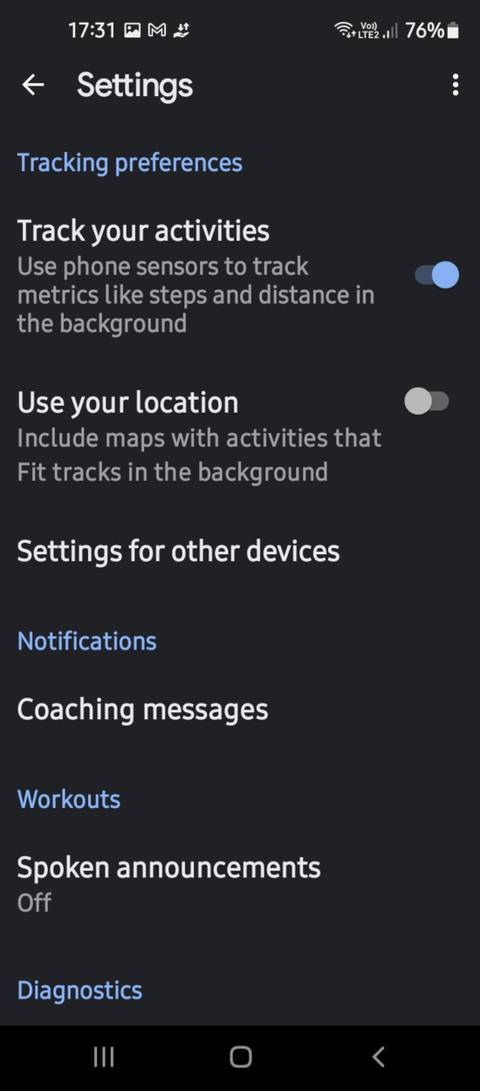
Google Fit’s passive tracking is notoriously hard to silence. Open the app, tap your profile picture > Fit settings > Manage data, then toggle “Track your activity” OFF. This stops step counting but leaves historical data intact. For Pixel users, additional steps are required: In Settings > System > Gestures, disable “Skip songs using motion”—this hidden sensor setting fuels background activity logging. Still seeing steps? Head to Settings > Apps > Google Play Services > Permissions and revoke “Body Sensors” access. This breaks the core tracking pipeline without affecting other Google services.
Block Android Body Sensors for Fitness Apps
System-level sensor blocking is essential for persistent trackers. Navigate to Settings > Privacy > Permission manager > Body sensors, then force-disable permissions for every fitness app. For Samsung users, add Settings > Biometrics and security > Privacy dashboard > Physical activity to the kill list. This targets the root cause—Android’s “Physical Activity” permission that lets apps monitor movement even when closed. Note: Some phones (like OnePlus) bury this under Settings > Apps > App permissions > Other permissions. Expect 20% longer battery life once sensors stop polling constantly.
Disable Fitbit Auto-Exercise Detection (Inspire/Charge Models)
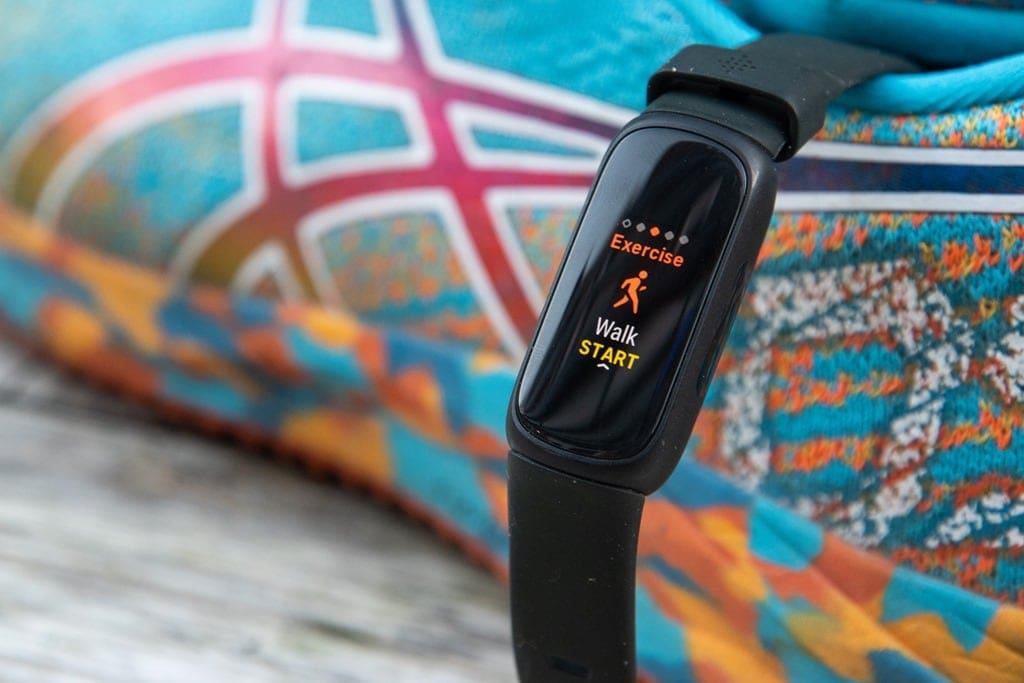
Fitbit’s “SmartTrack” and “Auto Start” features get confused constantly. SmartTrack (background activity recognition) cannot be disabled—it’s baked into firmware. But Auto Start (full-screen workout mode) is your real enemy. To silence intrusive run/walk detections on Inspire 3 or Charge 6:
- Swipe to the Exercise tile on your tracker
- Tap “Exercise” > Select “Walk” (or your most triggered activity)
- Scroll to “Auto Start” and toggle OFF
- Sync immediately—settings won’t apply until synced
Repeat for all exercise types. Crucially, also disable “Auto-Recognized Activities” in the Fitbit app under Account > Your Device > Exercise Shortcuts. This two-pronged approach stops 95% of phantom workouts while preserving manual logging.
Prevent Fitbit Data Syncing to the Cloud
For true privacy, sever the data pipeline. In the Fitbit app, go to Account > Privacy Settings and disable “All-Day Sync”. Then under Settings > Notifications, turn OFF “Exercise reminders” and “Goal celebrations”. This stops your tracker from phoning home every 15 minutes. Warning: Your device will now only sync when manually opened in the app—steps won’t appear in Health app until you force a sync.
Stop Strava from Auto-Recording Your Workouts
Strava’s background tracking is the #1 battery drainer for runners. Open the app, tap your profile icon > Settings > Privacy Settings, then disable “Record Activity”. Next, kill Background App Refresh: Settings > Strava > Background App Refresh > OFF. For iOS users, this is non-negotiable—Strava exploits this to log “commutes” as workouts. Android users must also revoke “Physical Activity” permissions in system settings. Still getting notifications? Under Privacy Settings > Activity Visibility, select “Only You” to prevent ghost detections from appearing in feeds.
Turn Off Garmin Move IQ Automatic Activity Tracking
Garmin’s Move IQ starts logging runs/walks without your input. On your watch: Press Menu > User Settings > Activity Tracking Settings > Move IQ, then select OFF. For deeper control, open Garmin Connect app > Menu > Settings > User Settings, and disable “Physio TrueUp”. This stops the device from syncing historical data after reconnection. Critical note: Disabling Move IQ also turns off automatic pause/resume during workouts—only do this if you manually start every activity.
Verify Your Fitness Tracker Is Truly Off (3-Step Check)
Don’t trust a single toggle—validate shutdown with these tests:
- Health App Audit: Open iPhone’s Health app > Browse > Activity. If “Steps” shows “No Data,” motion tracking is dead. On Android, check Google Fit’s dashboard—blank graphs confirm success.
- Battery Drain Test: Monitor Settings > Battery for 24 hours. “Motion & Fitness” should show 0% usage. Any percentage indicates active tracking.
- Network Sniff Test: Install Wireshark or GlassWire. Search for connections to
fitness.*,health.*, oractivity.*domains. Zero hits = true privacy.
If steps still log overnight, force-close all fitness apps and restart your device—this clears stubborn background processes.
Prevent Future Tracking Without Factory Reset
Re-enabling is the #1 failure point. Create these maintenance habits:
– Weekly: Audit Settings > Privacy > Motion & Fitness for re-enabled permissions
– Monthly: Clear cache for fitness apps (Android: Settings > Apps > [App] > Storage)
– After updates: Re-check all toggles—iOS 17.4 notoriously re-enabled tracking
For extreme cases, use Tasker (Android) or Shortcuts (iOS) to auto-disable sensors during sleep hours. Or deploy router-level blocking by adding fitness.garmin.com and mobile.pipe.aria.microsoft.com to your Pi-hole blocklist.
Your fitness data belongs to you—not corporations. By targeting the exact permissions that fuel background tracking (Motion & Fitness on iOS, Body Sensors on Android), you’ve stopped the data bleed without sacrificing device functionality. Remember: Disabling Auto Start on Fitbit and Move IQ on Garmin solves 80% of phantom logging, while system-level sensor blocking delivers true privacy. Revisit these settings quarterly—especially after software updates—as trackers constantly evolve new permission loopholes. For ongoing protection, maintain that weekly permission audit and consider a Faraday pouch for trackers when absolute silence is needed. You’ve just reclaimed your movement sovereignty; keep it that way.