
Your workbench software suddenly stops working, halting critical projects and wasting valuable time. Whether you’re a database administrator struggling with MySQL Workbench connection failures or an engineer facing ANSYS Workbench launch problems, these workbench not working scenarios disrupt productivity across industries. This guide delivers targeted solutions for both platforms, helping you diagnose and fix common issues within minutes instead of hours.
The frustration of a non-functional workbench is universal—MySQL users can’t access databases while ANSYS engineers can’t run simulations. Many mistakenly assume the problem requires professional help, but 80% of workbench not working issues stem from installation errors, configuration problems, or simple system conflicts that you can resolve yourself. By the end of this guide, you’ll know exactly which troubleshooting steps to take based on your specific symptoms.
MySQL Workbench Connection Failures: Immediate Fixes
When MySQL Workbench won’t connect to your server, your first critical step is verifying the MySQL Server installation status. MySQL Workbench is merely the interface—you must have the separate MySQL Server component running for any database operations. Many users install Workbench without realizing the server must be installed separately.
Confirm MySQL Service Is Running
Check your Windows Services (type services.msc in Run) for “MySQL” or “MySQL80” entries. If the service status shows “Stopped,” right-click and select “Start.” On Linux, use systemctl status mysql to verify the server is active. If you can’t find the service, you likely haven’t installed MySQL Server—download MySQL Installer from dev.mysql.com to install both components simultaneously using the “Custom” setup option.
Diagnose Port Connectivity Problems
MySQL defaults to port 3306, which often gets blocked by firewalls. Open Command Prompt and run:
netstat -an | findstr 3306
If nothing appears, your server isn’t listening on the expected port. Temporarily disable your firewall to test connectivity, then create a permanent exception for port 3306. For remote connections, ensure your MySQL configuration file (my.cnf) doesn’t bind to 127.0.0.1 only—comment out this line to allow external access.
Recover Missing Database Connections
When your MySQL Workbench connections vanish unexpectedly, navigate to C:\Users\[YourUsername]\AppData\Roaming\MySQL\Workbench\ and locate connections.xml. Back up this file immediately, then either restore from a previous version or reconfigure connections manually. Pro tip: Export your connections monthly using Workbench’s built-in export feature to prevent future data loss.
ANSYS Workbench Won’t Launch? Solve These Critical Issues
ANSYS Workbench failures typically stem from installation conflicts or system incompatibilities. Unlike MySQL Workbench, ANSYS requires specific hardware configurations and licensing that often trigger launch failures. When your ANSYS workbench not working issue prevents startup, focus on these critical areas first.
Execute a Clean Reinstallation Protocol
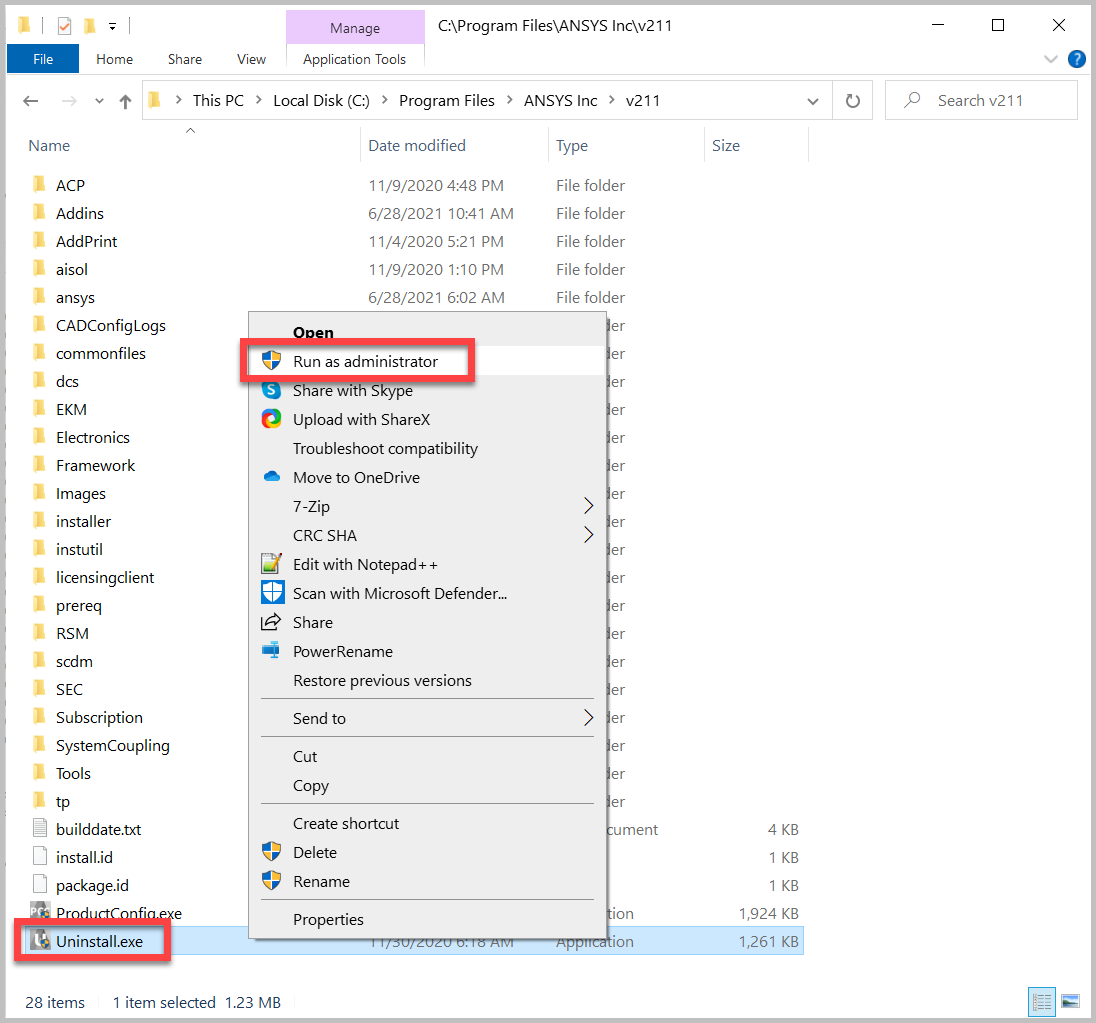
Most ANSYS launch failures require a complete system cleanup before reinstalling:
- Uninstall all ANSYS components via Control Panel
- Delete these directories:
C:\Program Files\ANSYS Inc\
C:\Users\[Username]\AppData\Local\ANSYS, Inc\ - Remove registry entries under HKEY_CURRENT_USER\SOFTWARE\ANSYS (backup first)
- Restart your computer
- Reinstall with UAC disabled and Run as Administrator
Skipping any step often causes recurring workbench not working issues. Corporate users should coordinate with their license administrator before proceeding.
Resolve Graphics Rendering Failures

ANSYS heavily relies on GPU performance, making graphics issues common. When models render incorrectly or the interface appears distorted:
- Update to manufacturer-specific drivers (NVIDIA Quadro or AMD Radeon Pro)
- Disable hardware acceleration in Workbench under Tools → Options → Graphics
- Switch to software rendering mode for immediate access
- Disable integrated graphics if using a discrete GPU
Check your DirectX version by running dxdiag—ANSYS requires DirectX 11 or later. Outdated DirectX components frequently cause the workbench not working error with no visible symptoms.
Fix License Authentication Failures
ANSYS license errors display messages like “License checkout failed” or “Cannot connect to license server.” These typically stem from:
- System clock/time zone mismatches (verify accuracy within 2 minutes)
- Incorrect license file location or permissions
- Blocked license server ports (check with network administrator)
- Expired trial licenses requiring renewal
Restart the license manager service via Windows Services or use the ANSLIC_ADMIN command line tool. Corporate users should contact their license administrator immediately—don’t attempt registry fixes that could invalidate your license.
Critical System Conflicts Affecting Both Workbenches
Security software often blocks workbench applications, triggering false positives that prevent normal operation. When your workbench not working issue appears suddenly after a security update, follow these steps:
Create Antivirus Exclusions Immediately
- Add these paths to your antivirus exclusions:
C:\Program Files\MySQL\
C:\Program Files\ANSYS Inc\
C:\Users\[Username]\AppData\Roaming\MySQL\ - Whitelist these executables:
MySQLWorkbench.exe
AnsysWBU.exe - Disable real-time scanning during large operations (temporarily)
Windows Defender’s Controlled Folder Access frequently blocks ANSYS project saves—disable this feature in Windows Security settings during active work sessions.
Solve Permission-Related Failures
Both workbenches require proper file permissions. When saving fails or components won’t load:
- Right-click the application → Properties → Compatibility → Check “Run as Administrator”
- For MySQL, ensure MySQL folder has Modify permissions for your user account
- For ANSYS, grant Full Control to your user account for the entire ANSYS Inc directory
On corporate machines, contact your IT department to adjust group policies that restrict application permissions.
Advanced Troubleshooting When Basic Fixes Fail
When standard solutions don’t resolve your workbench not working issue, dive deeper with these diagnostic methods:
Analyze Event Viewer Logs

Windows Event Viewer (eventvwr.exe) reveals hidden errors:
- Open Windows Logs → Application
- Filter for Error level events
- Look for entries containing “MySQL” or “ANSYS”
- Note error codes for precise troubleshooting
For MySQL, check C:\Users\[User]\AppData\Roaming\MySQL\workbench.log for detailed connection errors. ANSYS users should examine logs in %TEMP%\ANSYS\ for launch failure clues.
Reset Configuration Files Without Data Loss
Corrupted configuration files cause mysterious workbench failures. Reset safely:
MySQL Workbench:
Go to Edit → Preferences → Reset Layout (preserves connections)
ANSYS Workbench:
Rename the C:\Users\[Username]\AppData\Roaming\ANSYS folder to create a fresh configuration while keeping projects intact
Prevention Strategies to Avoid Future Failures
Stop recurring workbench not working issues with these maintenance routines:
Weekly Maintenance Checklist
- Clear temporary files in %TEMP% and AppData directories
- Verify MySQL service status and restart if needed
- Update graphics drivers for ANSYS compatibility
- Export MySQL Workbench connections.xml backup
Monthly Optimization Tasks
- Update both applications to latest versions simultaneously
- Check disk space (maintain 50GB+ free for ANSYS operations)
- Validate license status for ANSYS installations
- Test backup restoration procedures
Document every troubleshooting step you take—this creates a personalized knowledge base for future workbench not working scenarios. Most recurring issues follow patterns that become obvious only after tracking multiple incidents.
When basic troubleshooting fails after multiple attempts, contact official support with your Event Viewer logs and specific error messages. MySQL users should include connection details and server version numbers, while ANSYS customers need their license file and hardware specifications. Never attempt registry edits without professional guidance—improper changes can permanently damage your installation.
The key to solving workbench not working issues lies in methodical diagnosis: identify whether you’re dealing with MySQL or ANSYS first, then follow the platform-specific troubleshooting path. Most problems resolve within 30 minutes when you address the correct root cause rather than applying generic fixes. Implement the prevention strategies outlined here to minimize future disruptions and keep your critical workflows running smoothly.



